

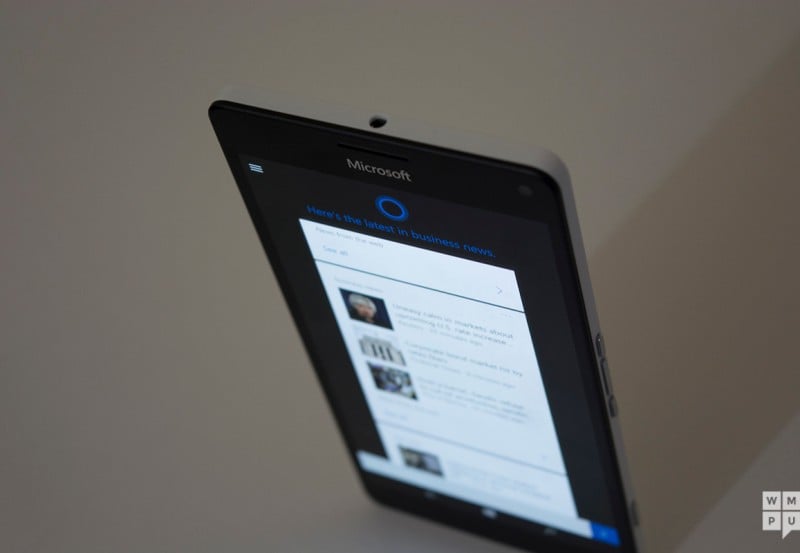
While Cortana is one of Windows 10’s headlining features, it can’t be denied that the it is subject to some severe privacy conces.
Previously, to use Cortana, the firm required users to login with your Microsoft account, tu on location and then hand over permission to contacts, email and location services.
You could disable these permissions in Windows 10 November update, but it was often a tedious effort as demonstrated in the Microsoft FAQ pasted below. You would have to hop from section to section, and not all permissions could be edited.
For each device, you can tu off some of Cortana’s data collection from your messages, such as the extraction of flight numbers and other information, in Cortana settings. You can also tu off Cortana’s collection of browsing history in Microsoft Edge in Microsoft Edge settings.
Tuing off tracking for a particular event will stop Cortana from notifying you proactively, but Cortana will keep access to info from your communications. To completely tu off Cortana’s capability to track flights, packages, and other information from your messages, go to Cortana > Notebook > Settings, and then, under Find flights and more, tu the Detect tracking info, such as flights, in messages on my device setting Off.
To tu off Cortana’s collection of browsing history in Microsoft Edge, while you’re in Microsoft Edge, go to More actions> Settings, and under Advanced settings, select View advanced Settings, and then, under Privacy and services, tu the Have Cortana assist me in Microsoft Edge setting Off
In an earlier Windows 10 build, Microsoft had lifted the location services requirement, and now the firm has added updates that allow the user to take control of their own personal data.
Gallery


As shown in the screenshots above, Microsoft has implemented a new permissions screen that allows the user to take control of what data Cortana collects from a centralized location.
You can now tu off location and use Cortana without location services engaged, and prevent the service from making use of your inteet history to suggest things to you in the dashboard, and you can stop it from looking at your contacts and messaging. It is worth noting that while Cortana shows up in the built-in permissions screen in the settings pane, most of the options are greyed out. With this small change, controlling Cortana is now intuitive and much easier to do for the average user.
Microsoft is making other changes in Cortana to improve the experience overall, but this one might just be the most uncontroversial.