

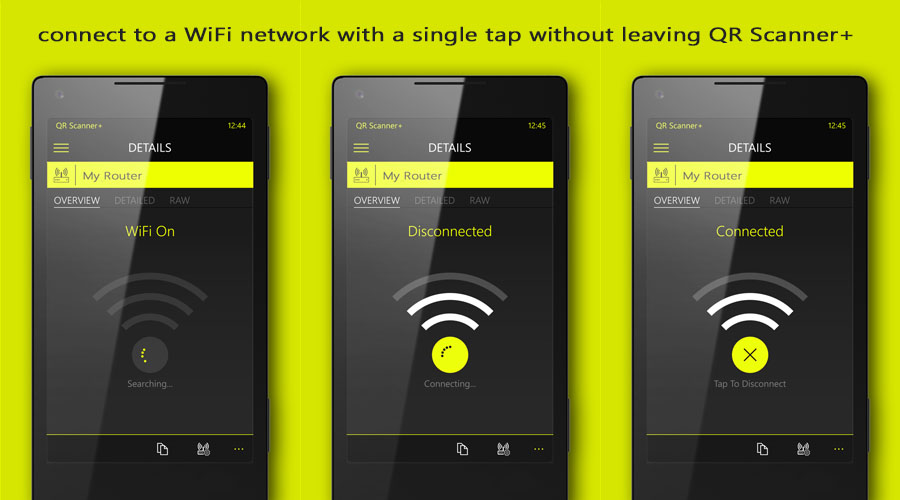
QR Scaer+ gets another update (version 3.10.6) with cool new features, which makes using QR code content even easier.
Wi-Fi
If you have scaed a QR code with Wi-Fi login data before, then you needed to copy the password (1), leave the scaer app (2), open the Windows device Wi-Fi settings (3), search the SSID of the router you want coect to from a list (4), and then finally coect to it by pasting the password (5). QR Scaer+ had at least a Wi-Fi settings shortcut, but it wasn’t very convenient at all.
So now, the steps are reduced from 5 to 1. Just scan a QR code with Wi-Fi login data and press “Coect”. Simple, isn’t it?
Overview tab @ details
What are QR code scaing apps actually made for? Well, they translate the information from a non-readable format to a readable one, lets say “text”. Previous versions of QR Scaer+ showed this content well processed (unprocessed raw content is accessible also) and focused on giving you access to this content as detailed as possible, so the content can be used at any maer. This is pretty cool, if you need to work with that data. Now, with the added “Overview” tab, the content is presented more familiar.
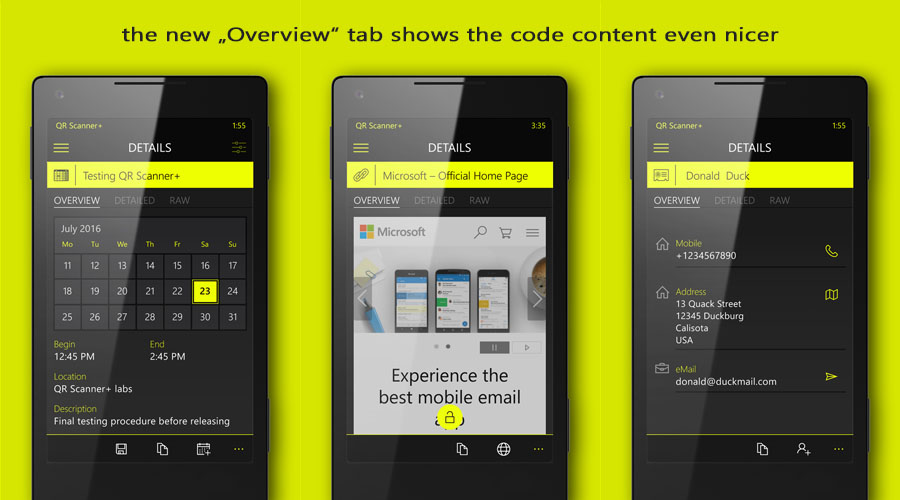
Appointments have a little calendar, web links can be previewed, business cards are more compact and have direct actions if needed.
Auto-Launch for web links and Windows Store links
This feature was plaed for a later update, but was added on request. It’s optional and can be toggled at “Result Specific” settings “on” or “off”. If set to “on”, then links will be opened immediately after scaing in the browser and Windows Store links (if compatible) in the Windows Store.
I hope you like the new features, more is in the works.
Please don’t forget to rate QR Scaer+ in the Windows Store and feel free to send in your feedback.

Developer: EXYAIZED