
microsoft news

درباره سایت
آخرین مطالب
- OnePlus Nord gets March 2021 security patch with OxygenOS 11.1.1.2 update
- OnePlus 9 and 9 Pro get their first OxygenOS update
- Slack will soon allow organizations to create a private business network for secure communication
- OnePlus Nord receives yet another OxygenOS update, with July security patch, camera imropvements and more
- Apple Co-founder sues YouTube over Bitcoin scam videos
- New Samsung Galaxy Watch 3 comes with fall detection and an amazing hand gesture
- Microsoft’s LinkedIn sued for iOS clipboard snooping
- Deal Alert: Microsoft’s Surface Laptop 3 is $270 cheaper today
- Samsung Galaxy Z Fold 2 will reportedly not launch on the 5th August
- Netmarketshare: Chrome now officially has more than 70% of the desktop browser market.
امکانات وب
Microsoft will be releasing their next major update in spring of 2020. The new update is dubbed as Windows 10 20H1 or Windows 10 version 2004 but Microsoft will most likely give it an official name closer to the rollout. The company recently published the ISO files of the 2004 update on Windows Insider website so we expect Microsoft to aounce the update rollout dates soon.
Microsoft started working on Windows 10 version 2004 last year which came as a surprise to many users. The company decided to make 19H2 an incremental upgrade and save the major features and changes for Windows 10 version 2004. Now, that Microsoft has almost rolled out Windows 10 19H2 to all the Windows 10 users, the company has started focusing on the next big update which is Windows 10 version 2004. As noted above, Windows 10 version 2004 will be rolling out in the spring of 2020 and Microsoft has already finalized the feature list and is almost done with the testing of the update.
What’s new in Windows 10 version 2004:
Cortana on Windows (Beta)
As part of evolving Cortana from a general digital assistant to a personal productivity assistant that helps you in the Microsoft 365 apps, Microsoft has made several changes that will give you a glimpse into how your assistant will help you manage tasks and time and coect with people. Read more about these changes.
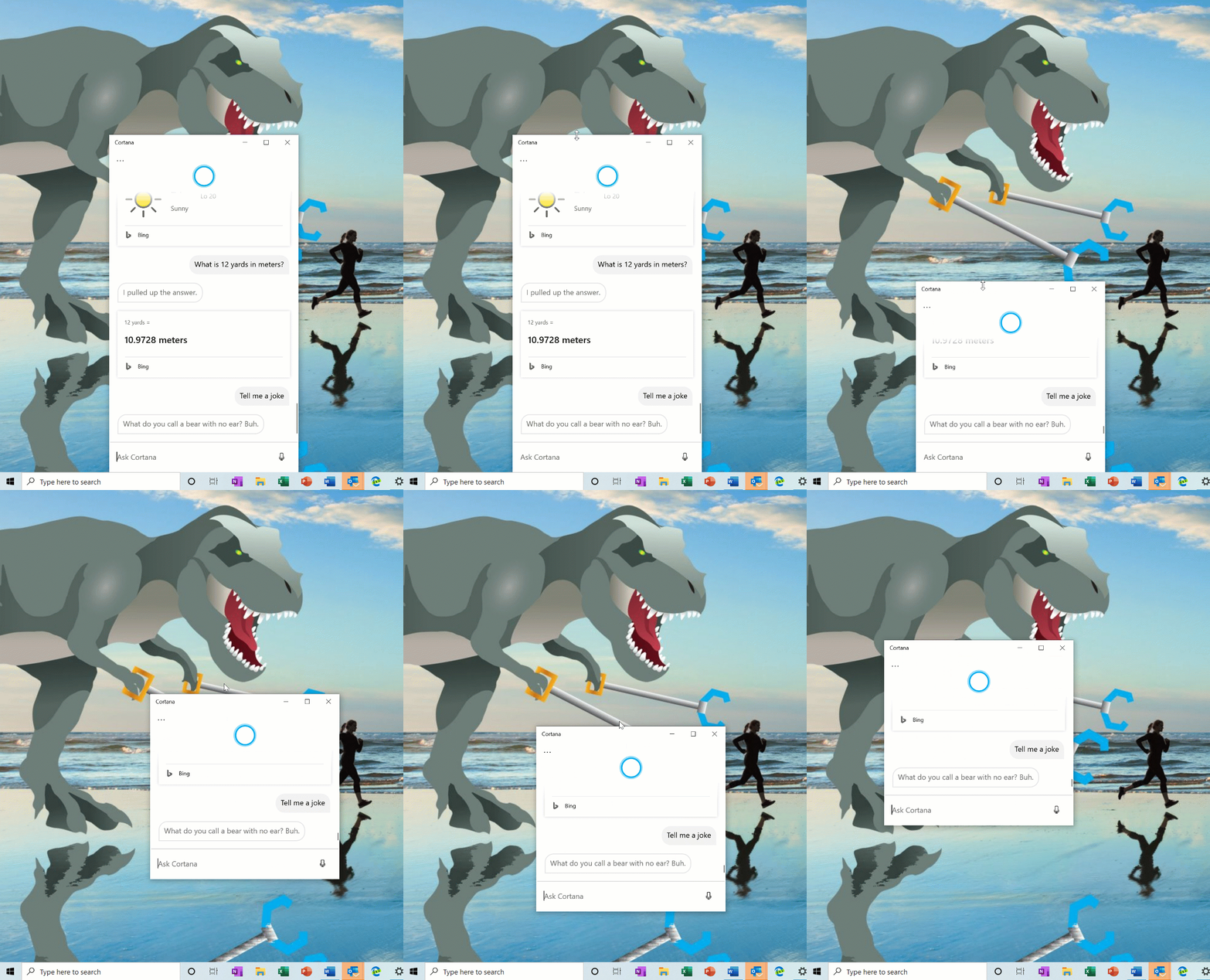
With the new conversational Cortana experience, Microsoft understands that you want to keep the chat going sometimes, and the default position of the window isn’t always where you’d prefer to have it docked if you’re going to have a longer back and forth. That’s why Microsoft is starting to roll out the option to be able to move the window (by dragging the title bar area), to anywhere you’d like on the screen–just like you can with other windows. You can also resize the window if you’d like.
Please note that Microsoft is still in the process of expanding language/region support of the new Cortana app, and Insiders outside of English (United States) will see a message when launching Cortana saying “Cortana isn’t available.” Microsoft will update you when the availability increases.
Improved disk usage for Windows Search
In 19H1, Microsoft asked Insiders why they were turning off the search indexer. Your feedback helped Microsoft make improvements then and helped focus on three key areas of improvement in Windows 10 version 2004: excessive disk and CPU usage, general performance issues, and low perceived value of the indexer.
Based on this, Microsoft is introducing an algorithm that detects high disk usage and activity, so it can better identify peak usage times and manage the indexer accordingly. Microsoft is also making changes for developers to prevent searches of certain repositories and project folders to improve disk usage.
Quick searches now in Search Home
To help you find the info that matters even faster, Microsoft has added four quick web searches to your Search Home:
- Weather: Get current conditions and the upcoming forecast
- Top news: Read the latest headlines from popular news sites
- Today in history: Explore four events that happened on this day
- New movies: Find out what’s playing in theaters near you
Occasionally, Microsoft will also feature a seasonal topic or interesting quiz.
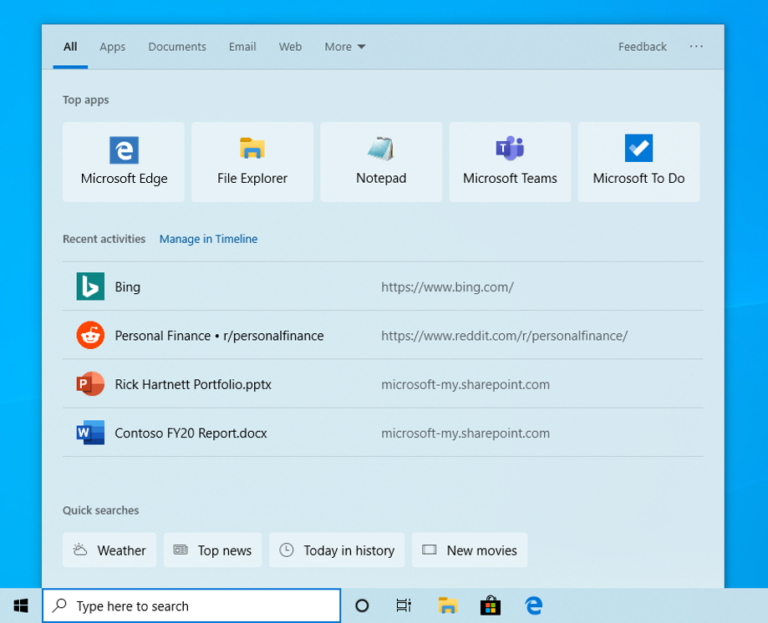
To try any or all of these searches, click the search box on your taskbar or press the Windows logo key + S to open Search Home. Want answers and results for other searches? Just type to enter your search and get the info you’re looking for quickly and easily.
Note: This is a server-side change that’s currently rolling out and will appear for users across builds from version 1809 to Windows 10 version 2004. Currently, quick searches are only available in the US but will be available soon internationally.
Updated design for web preview in search results
Microsoft has made a few small tweaks to how it looks–here’s what you’ll see now:

More kaomoji
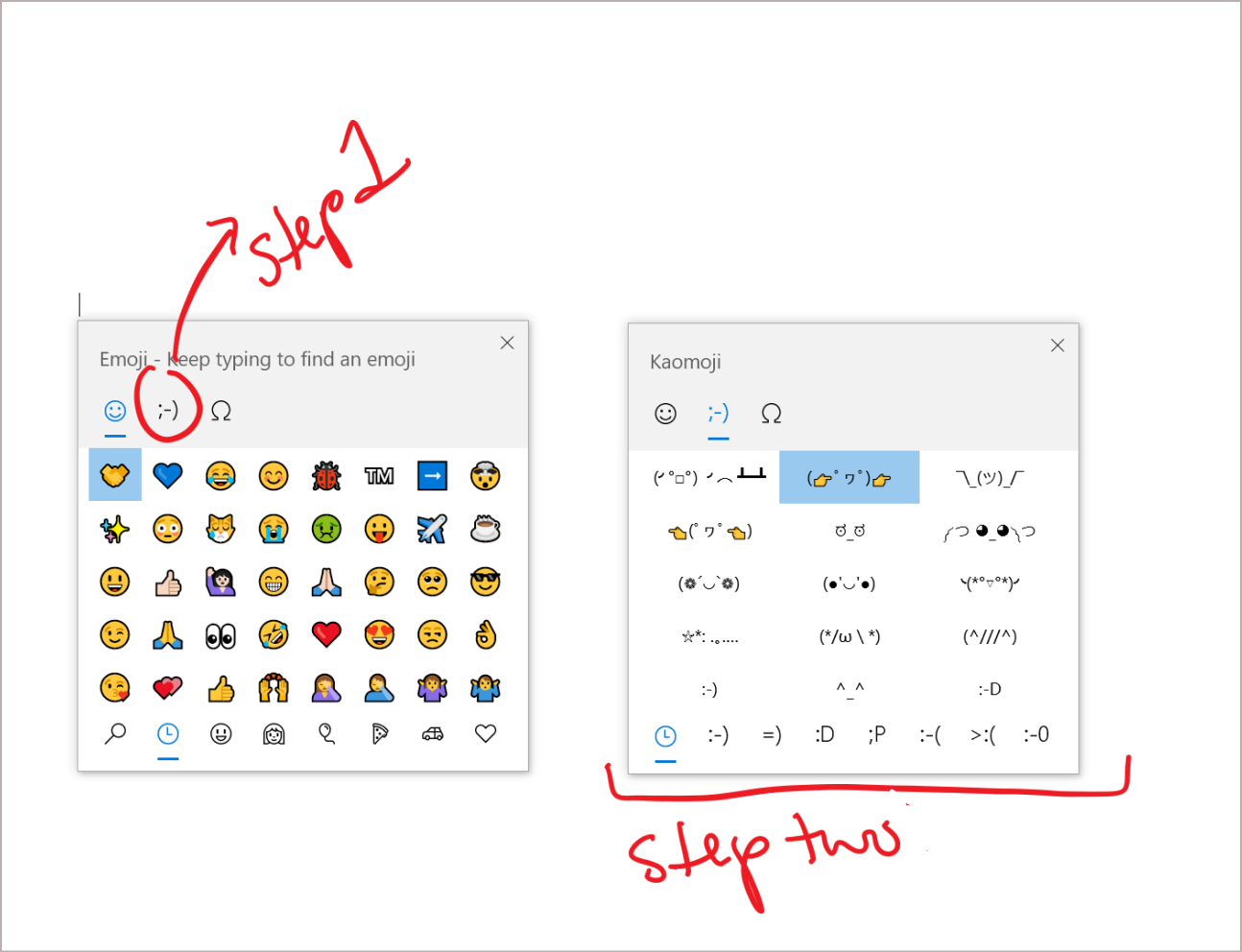
As some of you may know, with Windows 10 version 1903, Microsoft updated our WIN+(Period) / WIN+(Semicolon) keyboard shortcut to not only include emoji but to also now contain kaomoji and special characters. What are kaomoji? Basically, they’re faces with expressions you can make by combining various characters–for example, you might be familiar with the shruggie:
¯_(?)_/¯
Windows Subsystem for Linux (WSL) 2 improvements
Previously, your WSL 2 Virtual Machine’s (VM) memory would grow to meet the needs of your workflow, but would not shrink back down when the memory was no longer needed. With this change, as memory is no longer in use in the Linux VM, it will be freed back to Windows, which will shrink in memory size accordingly.
Microsoft has also added WSL2 support for ARM64 devices! Microsoft has also added the ability to set your distribution’s default user using the /etc/wsl.conf file. For the full details of changes in this latest Insider Preview build, please see the WSL release notes.
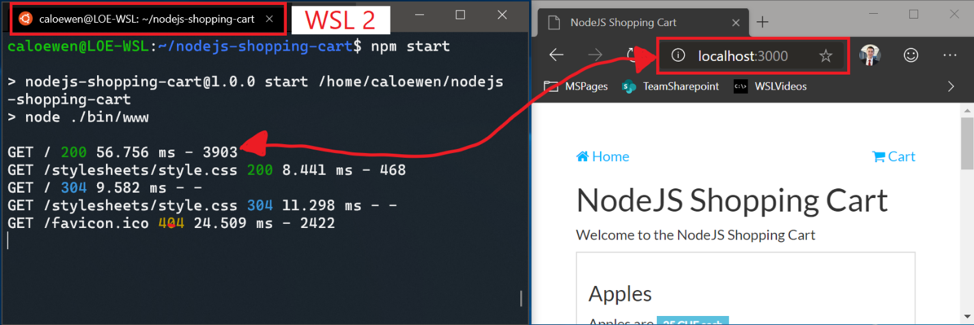
Added coecting via localhost to WSL 2 Linux apps from Windows and global WSL configuration options
You’ll now be able to coect to your WSL 2 Linux networking applications using localhost. For example, the image below shows starting a NodeJS server in a WSL 2 distro, and then coecting to it in the Edge Browser with localhost.
Additionally, Microsoft has added global configuration options for WSL. These are options that will apply to each of your WSL distros. This also allows you to specify options that relate to the WSL 2 virtual machine (VM), as all your WSL 2 distros run inside of the same VM. The most exciting option that you’ll get access to in this build is being able to specify a custom Linux kernel! For the full details on what’s new in this release, check out What’s new for WSL in Insiders Preview Build 18945 on the Windows command line blog.
Windows Hello PIN in Safe mode
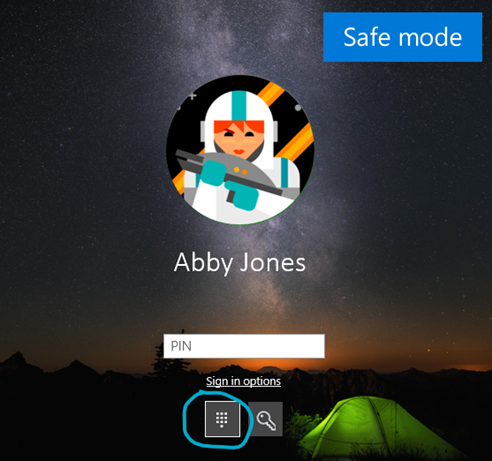
Microsoft is taking another step forward in our Passwordless journey by adding Windows Hello PIN sign-in support to Safe mode so that you no longer have rely on your password when troubleshooting your device. Try it out with the instructions below and let Microsoft know what you think!
- Set up Windows Hello in Settings > Accounts > Sign-in options
- Boot your device into Safe mode:
- Go to Settings > Update and Security > Recovery.
- Under Advanced startup select Restart now.
- After your PC restarts to the Choose an option screen, select Troubleshoot > Advanced options > Startup Settings > Restart. You may be asked to enter your BitLocker recovery key.
- After your PC restarts, you’ll see a list of options. Select 4 or press F4 to start your PC in Safe Mode. You can also select 5 or press F5 to use Safe Mode with Networking.
- Sign in to your device with your Windows Hello PIN
Coecting network cameras to Windows 10 devices
Network cameras, which are Internet Protocol-based cameras that transmit video data over a local area network (LAN), are becoming increasingly prevalent—especially in surveillance and security scenarios. Windows now allow users to associate network cameras to their PC, enabling photo capture and streaming of video in camera applications.
Enabling automatic restart for UWP apps
Microsoft already introduced a new separate setting to control if registered desktop apps from your previous sign-in session are restarted when signing back into Windows. In the latest Insider Preview builds, in addition to registered desktop apps, when you opt in to this setting, the majority of open UWP apps are now also automatically restarted as well! To reduce sign-in time, UWP apps are restarted minimized, in a suspended state, giving Windows and other apps more resources to get started. To try it out:
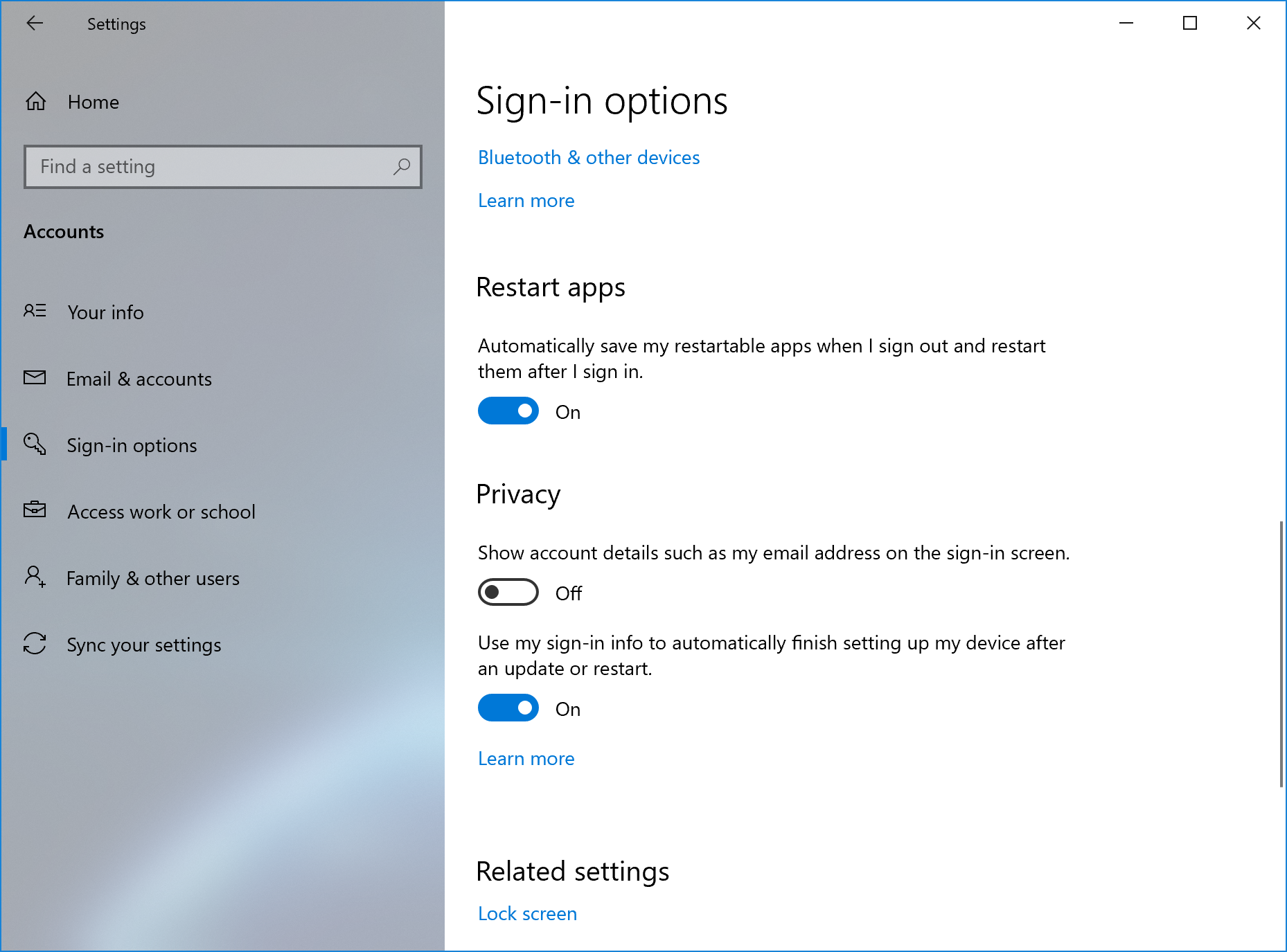
- Go to Settings > Accounts > Sign-in options and turn on “Automatically save my restartable apps when I sign out and restart them after I sign in.” under “Restart apps”.
- Start one or more UWP apps, such as Feedback Hub.
- Sign out and then sign back into Windows.
UWP apps that were started, such as Feedback Hub, should restart minimized with a taskbar button.
Xbox Game Bar Updates
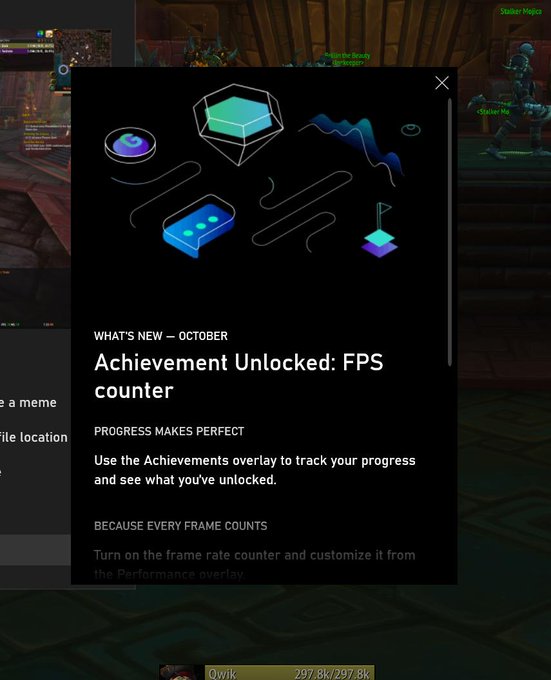
In case you hadn’t seen, Microsoft is starting to roll out an FPS counter and achievement overlay! The update will come via the Microsoft Store. Just set focus to your favourite game and press WIN + G to get started.
Improving your Bluetooth pairing experience
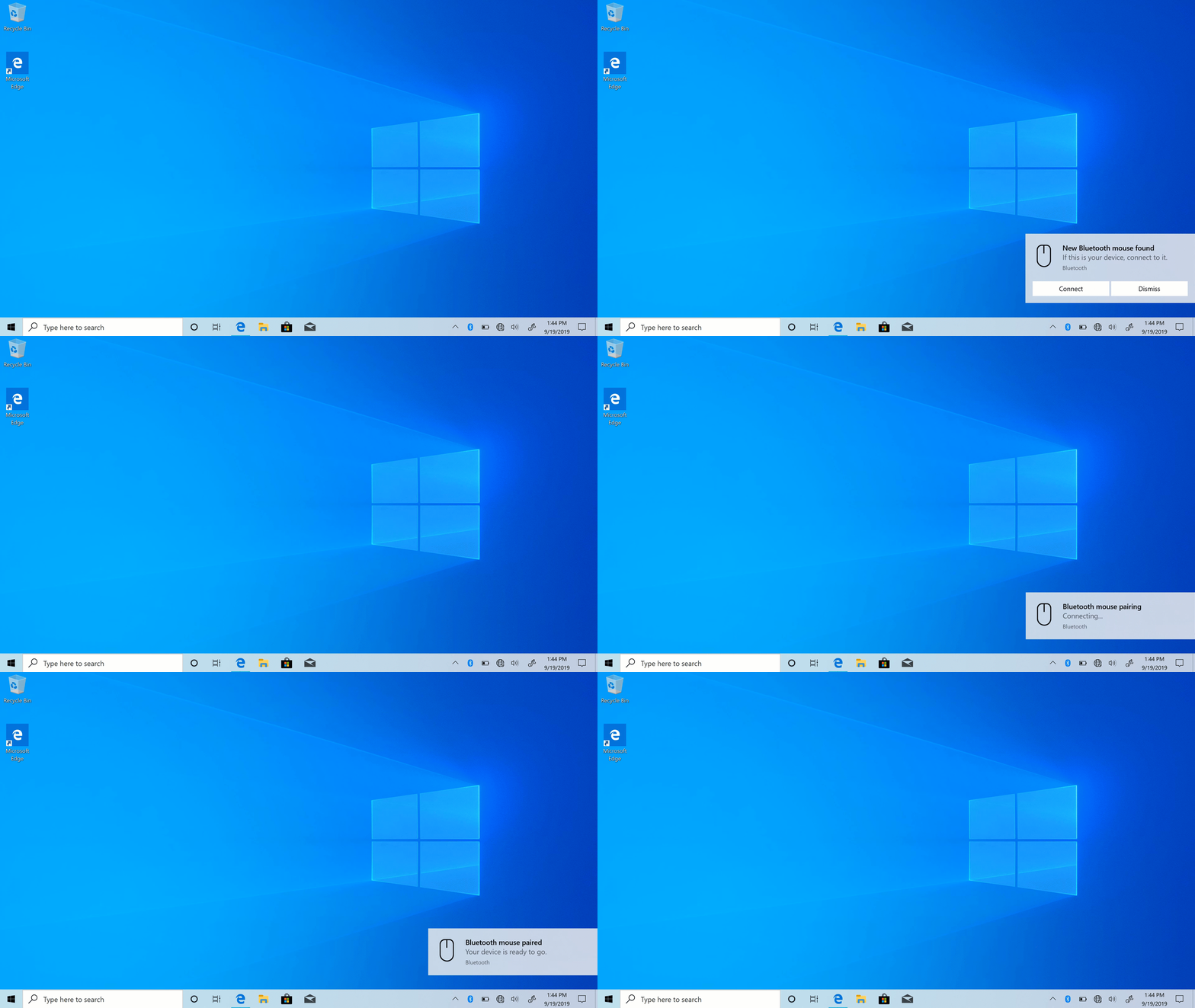
For Windows 10, version 1803, Microsoft aounced a new streamlined experience for pairing supported Bluetooth devices. The idea was simple—if a supported device was nearby and in pairing mode, Windows will show a notification that prompted you to go through pairing. This saved you from opening Settings yourself and finding the right place to go. Today, Microsoft is rolling out an update with improvements Microsoft hopes you’ll like. Here’s what’s new:
- Pairing is all done in notifications now. You don’t need to go to the Settings app anymore to finish pairing.
- For faster pairing time, Microsoft has improved the UI by showing one less notification.
- Microsoft added a Dismiss button to the first notification to give you more control while using Swift Pair.
- To make the notification more helpful, now Microsoft shows the device name and category.
Supported devices include:
- Surface Ergonomic Keyboard
- Surface Precision Mouse
- Surface Mobile Mouse
- Surface Arc Mouse
- Surface Headphones
- Microsoft Arc Mouse
- Microsoft Modern Mobile Mouse
- Microsoft Bluetooth Keyboard
- Microsoft Bluetooth Mouse
Update on Virtual Desktop renaming
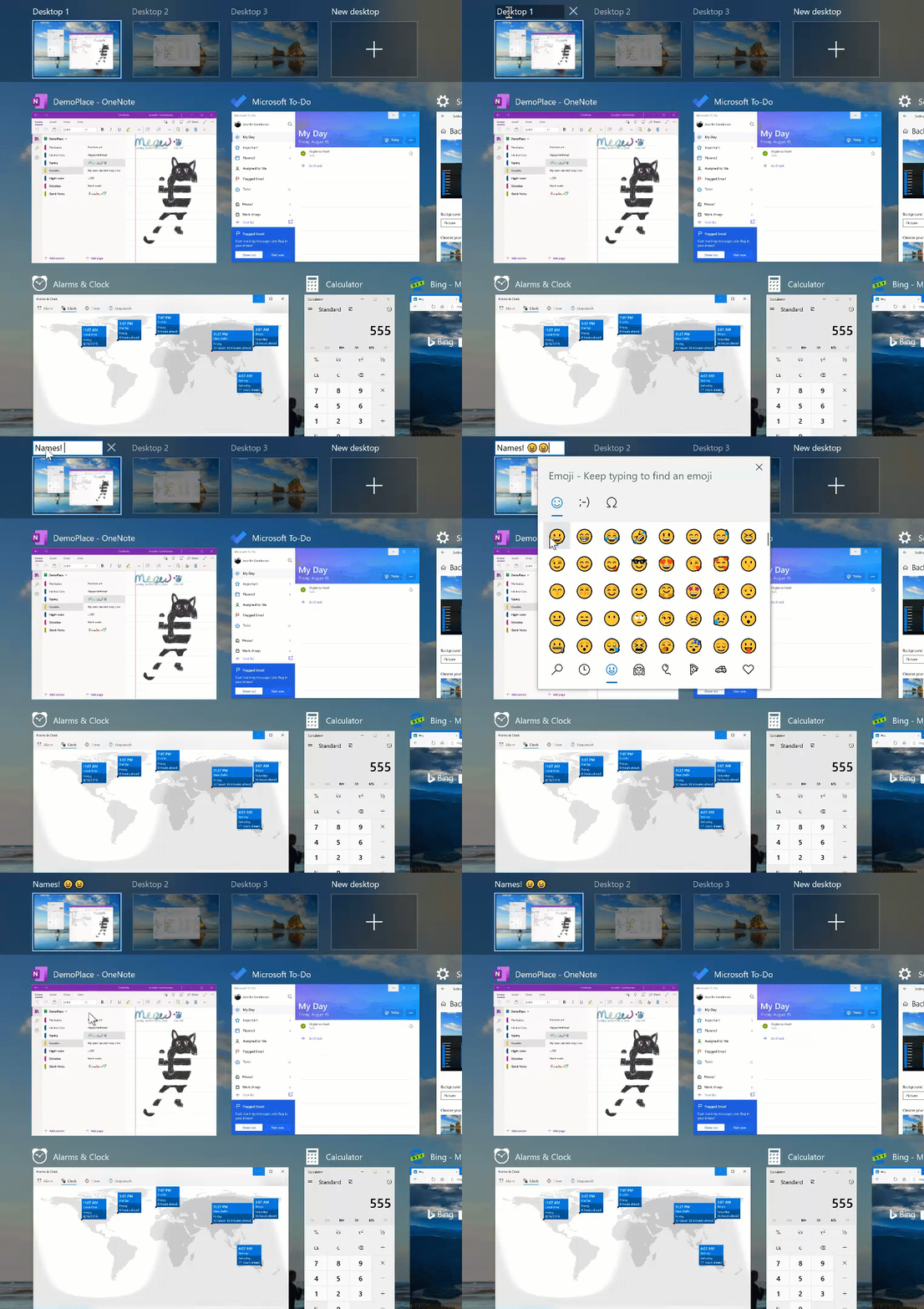
The ability to rename your virtual desktops is now available. To get started:
- Open Task View by selecting the Task View icon in the taskbar or pressing WIN+Tab.
- Select the New Desktop.
- Select the desktop name (“Desktop 1”) and it should become editable, or right-click the desktop thumbnail and a context menu will appear with a Rename entry.
- Input whatever name you’d like, and press enter.
- Done!
Introducing a new tablet experience for 2-in-1 convertible PCs!
Now available: a new tablet experience for 2-in-1 convertible PCs as a Beta to Windows Insiders.
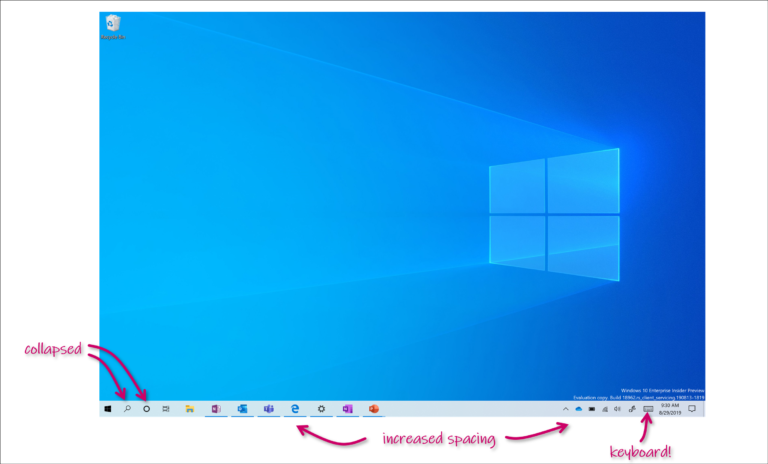
This new experience allows users entering tablet posture to stay in the familiar desktop experience without interruption, plus a few key touch improvements:
- Increased spacing between Taskbar icons.
- Search box on taskbar collapsed into an icon.
- File Explorer switches to touch optimized layout.
- Touch keyboard auto invokes when you tap text fields.
As part of this, Microsoft has also made a few small changes to the tablet section in Settings. Here are the steps to use on your PC:
- Use your convertible PC as a laptop as you normally would–opening apps and interacting with them.
- When you’re ready to pick it up and go or simply lean back on the couch, you can fold back the keyboard or remove it altogether, and it should switch to this new mode shown above.
- Now use your device as a tablet with touch.
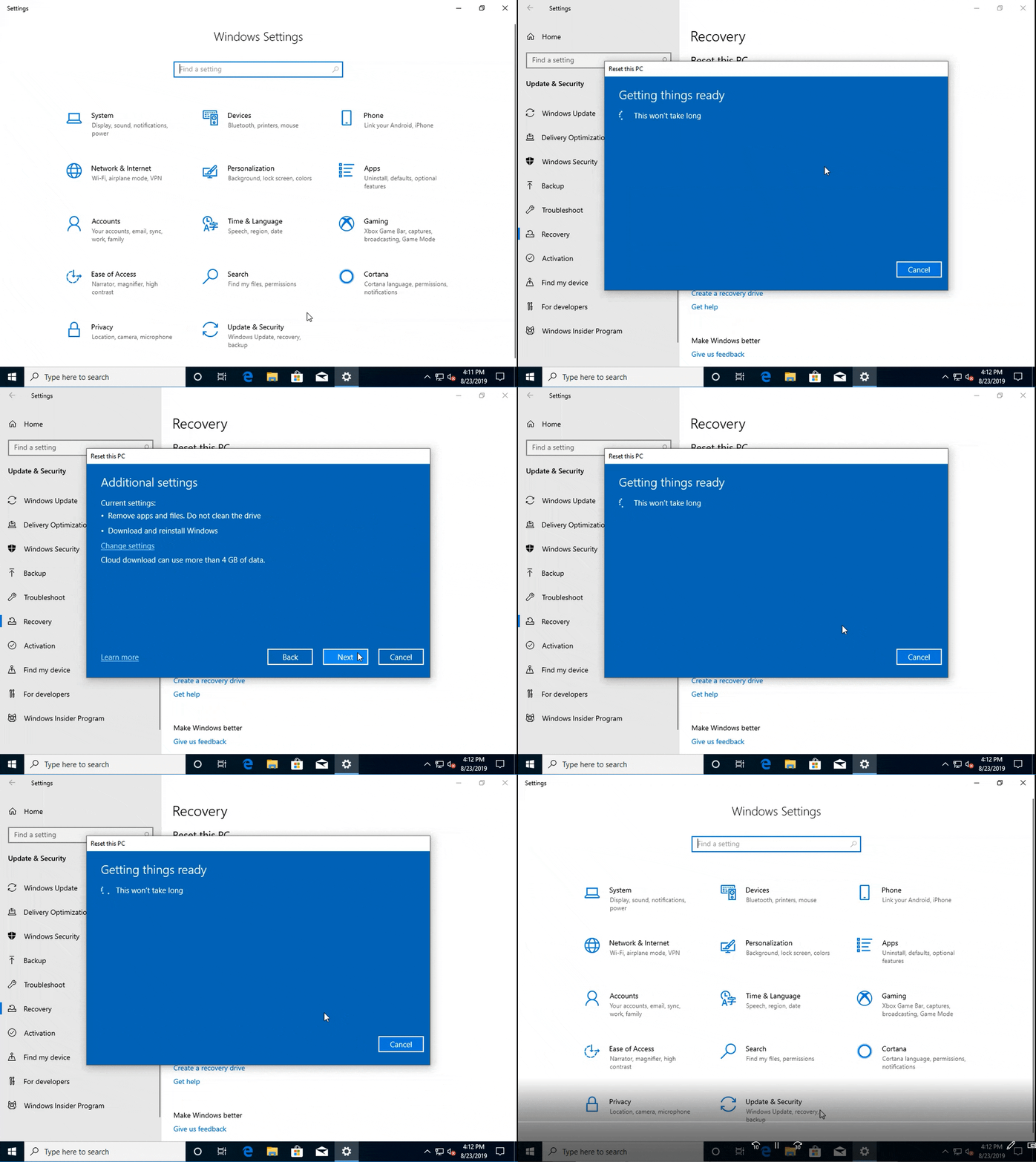
Reset your PC from the cloud
Reset this PC provides users a new choice to download Windows or use local reinstall. Previously, Reset this PC was only able to do a local reinstall and would build a new Windows installation from existing Windows files. When this feature was introduced in Windows 10 version 1507, it provided the advantage of enabling Windows to be recoverable without requiring extra disk space to store a compressed, backup copy of Windows in a hidden partition.
Note: This is a recovery operation and will remove the apps you have installed. Additionally, if the “Remove everything” option is selected, user data will also be deleted. For more information on Reset this PC and other recovery options, visit the link here.
The cloud download option will reinstall the same build, version, and edition, that is currently installed on your device. This new cloud download option is available to all Windows 10 devices and is different from the “Recover from the cloud” feature available on some earlier Windows 10 devices.
For more information, check out this article.
Control over restarting apps at sign-in
Windows now put you in control with a new app restart setting. When turned on, Windows automatically saves your restartable apps when signing out, restarting, or shutting down Windows, and restarts them next time you sign in. This setting is off by default and you can change it any time in Settings > Accounts > Sign-in options, and can find it by searching for “restart apps” in Start or the search box.
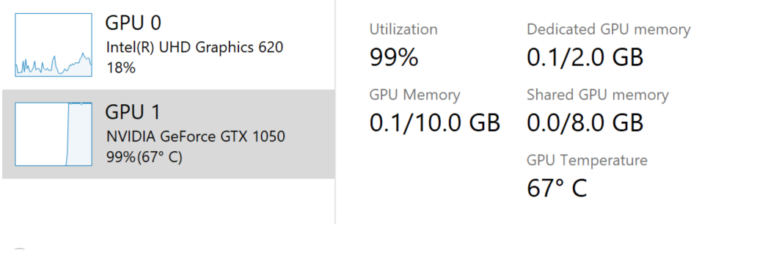
GPU temperature comes to Task Manager
If you have a dedicated GPU card, Microsoft will now bubble up the current temperature next to its listing in the Performance Tab.
If you have any further feedback for Task Manager, please don’t hesitate to share it. To make suggestions or report issues in this space, press WIN+F and file the feedback under Desktop Environment > Task Manager in the Feedback Hub.
Notes:
- Showing the GPU temperature in Task Manager is currently only supported if you have a dedicated GPU card.
- You may need an updated graphics driver to see the temperature. Specifically, one which supports version 2.4 (or higher) of WDDM is required. To check which version your PC has, press WIN+R and enter dxdiag. Under the Display tab, it will say your WDDM version next to the Driver Model.
- Currently, the temperature value is only supported in Celsius.
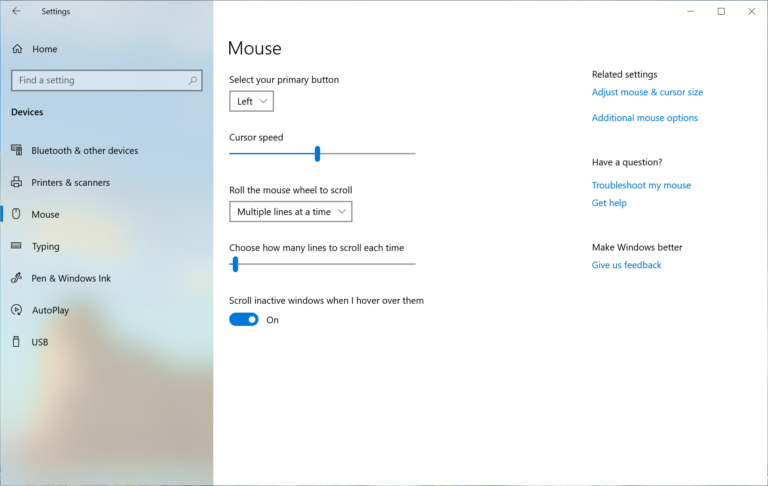
Adding Mouse Cursor speed to Settings
You can now set your mouse cursor speed from within Settings! This is the latest piece of Microsoft’s larger ongoing effort to converge Settings and Control Panel experiences. You can find the setting under Settings > Devices > Mouse.
Notepad improvements
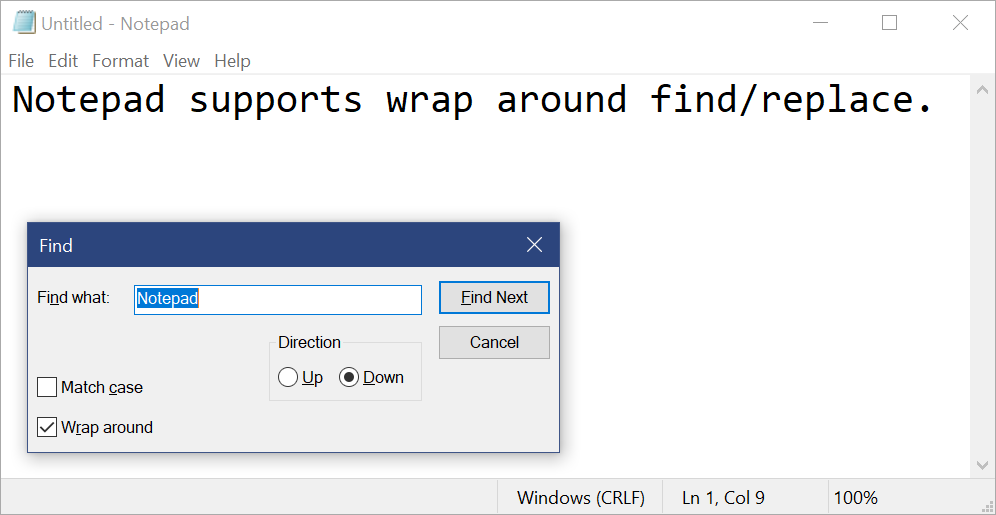
Notepad has been a well-loved text editor in Windows for over 30 years. Over the last few releases, Microsoft has been making a number of small improvements to Notepad based on your feedback including:
- Wrap-around find/replace: Microsoft has made significant improvement to the find/replace experience in Notepad. Microsoft has added the option to do wrap-around find/replace to the find dialog and Notepad will now remember previously entered values and the state of checkboxes and automatically populate them the next time you open the find dialog. Additionally, when you have text selected and open the find dialog Microsoft will automatically populate the search field with the selected text.
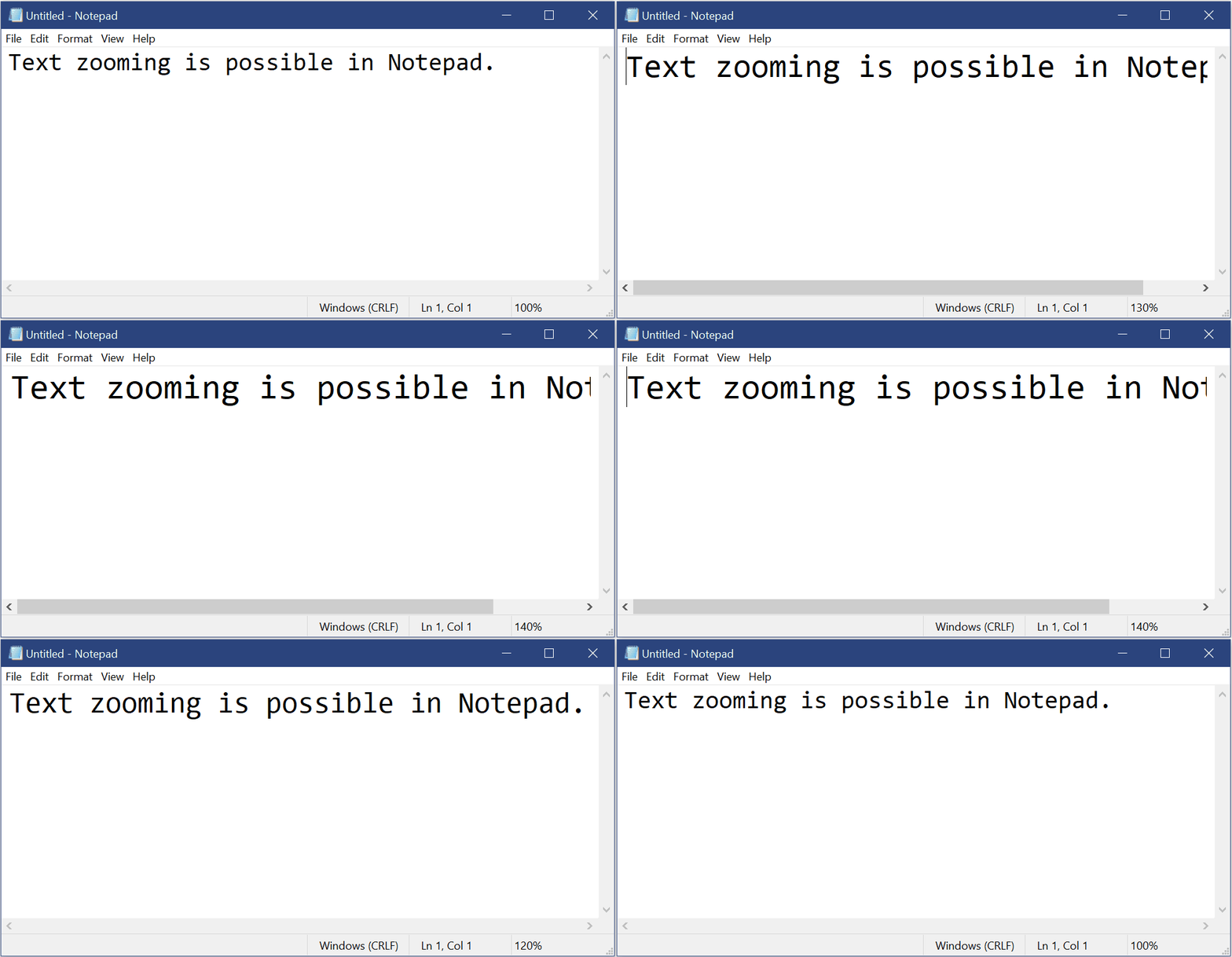
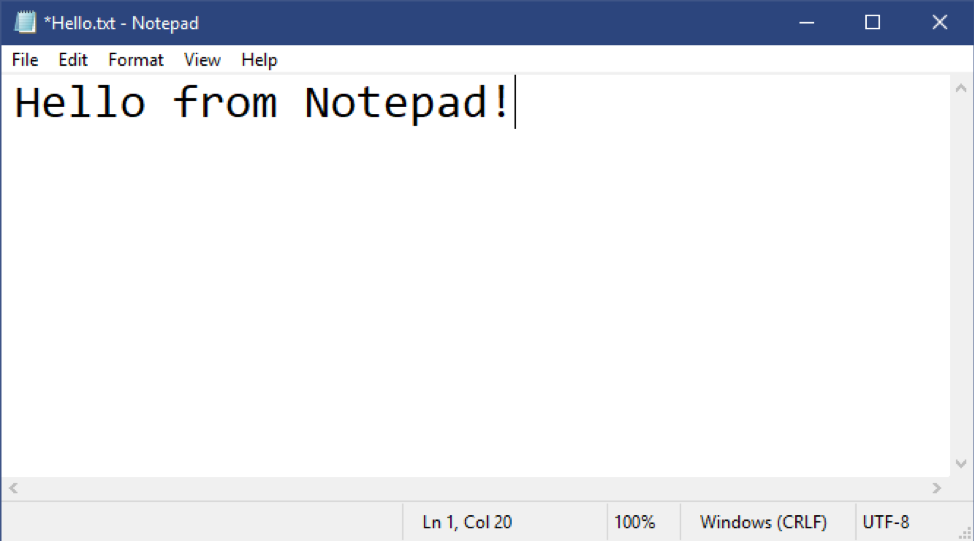
- Text zooming: Microsoft has added options to make it quick and easy to zoom text in Notepad. There is a new menu option under View > Zoom to change the zoom level and Microsoft displays the current zoom level in the status bar. You can also use Ctrl + Plus, Ctrl + Minus and Ctrl + MouseWheel to zoom in and out and use Ctrl + 0 to restore the zoom level to the default.
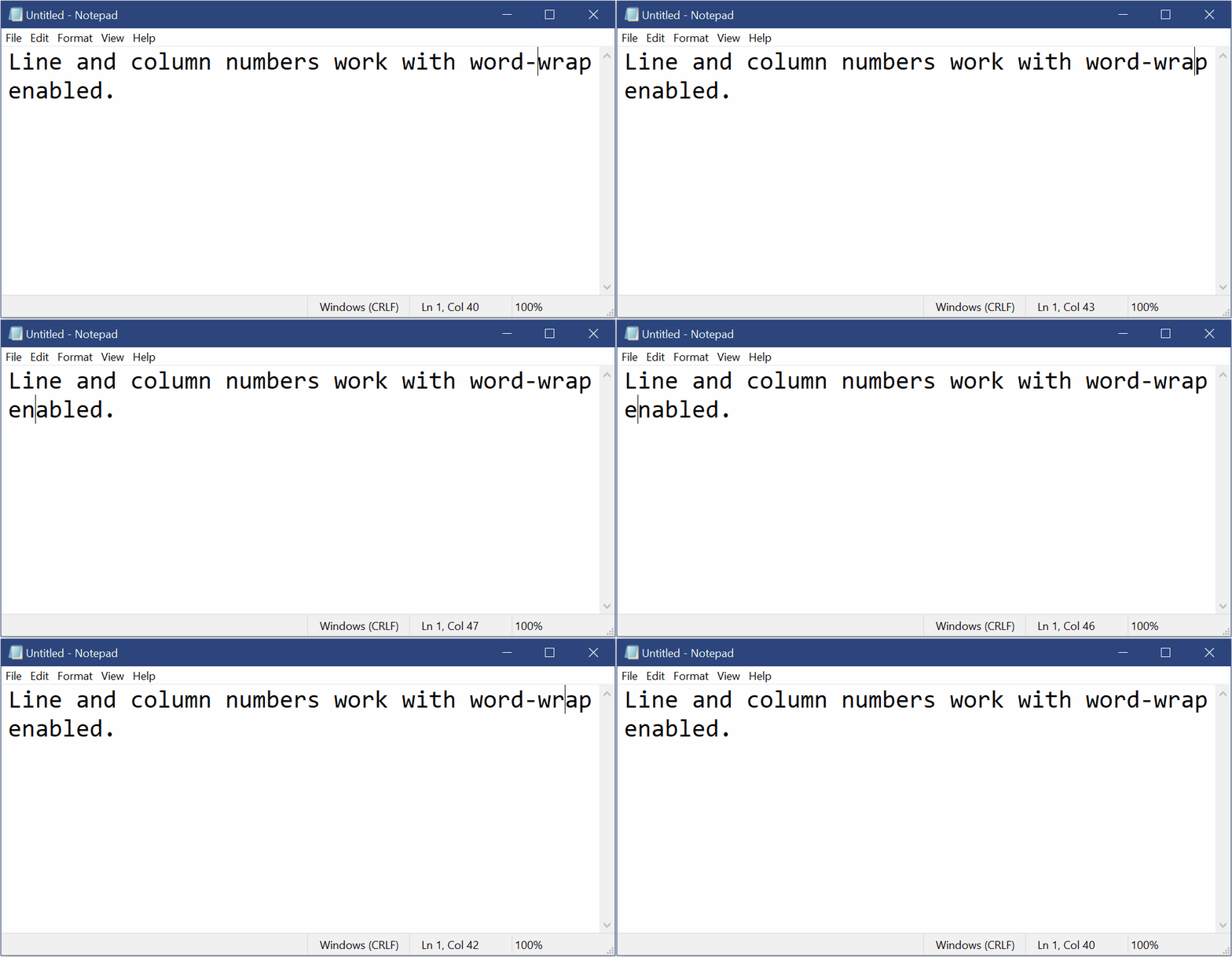
- Line numbers with word-wrap: A long outstanding request has been to add the ability to display line and column numbers when word-wrap is enabled. This is now possible in Notepad and Microsoft has made the status bar visible by default. You can still turn the status bar off in the View menu.
- Modified indicator: Notepad will now show an asterisk (*) in the title bar before the title of a document to indicate that a document has unsaved changes.
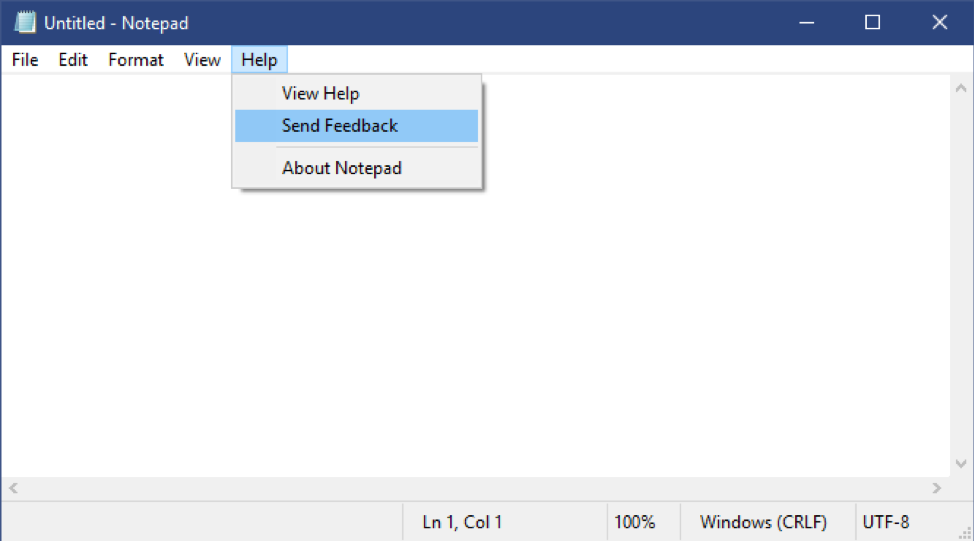
- Send Feedback: You can now send feedback directly from Notepad! Click Help > Send Feedback to open the Feedback Hub with the Notepad category selected and get your feedback directly to the product team.
UTF-8 Encoding: Microsoft has made significant improvements to the way Notepad handles encoding. Starting with this build, Microsoft is adding the option to save files in UTF-8 without a Byte Order Mark and making this the default for new files. UTF-8 without a Byte Order Mark is backwards-compatible with ASCII and will provide better interoperability with the web, where UTF-8 has become the default encoding. Additionally, Microsoft added a column to the status bar that displays the encoding of the document.
Other Updates
- Expanding line support
- Microsoft has added support for some additional shortcuts:
- Ctrl+Shift+N will open a new Notepad window.
- Ctrl+Shift+S will open the Save as… dialog.
- Ctrl+W will close the current Notepad window.
- Notepad can now open and save files with a path that is longer than 260 characters, also known as MAX_PATH.
- Microsoft has fixed a bug where Notepad would count lines incorrectly for documents with very long lines.
- Microsoft has fixed a bug where, when you select a placeholder file from OneDrive in the File Open dialog, Microsoft would download the file to determine its encoding.
- Microsoft has fixed a recent regression where Notepad would no longer create a new file when launched with a file path that didn’t exist.
- Microsoft has improved the performance when opening large files in Notepad.
- Notepad now supports Ctrl + Backspace to delete the previous word.
- Arrow keys now correctly unselect text first and then move the cursor.
- When saving a file in Notepad, the line and column number no longer reset to 1.
- Notepad now correctly displays lines that don’t fit entirely on the screen.
Changes to your account picture in Windows
Changing the picture for the account you use to sign in to Windows is now better than ever! Your updated picture will now show up quickly across Windows, apps, and many of the Microsoft sites you use every day. Previously, you might see as many as three or four different pictures for your account in different apps and sites at one time. It’s super easy to try out – just go to Your info in Windows settings and change your picture there!
Steps
- Open “Your info” in Windows settings by pressing the Windows key, and typing “Your info,” and selecting “Your account info.”
- Use the options in ‘Create your picture’ to select a new picture for your account.
- Check if your picture has been updated in Windows, and on the sites and apps you use.
Note: Microsoft is still working with many sites and apps that will need to be updated to work well with this new feature. For example, the account manager control that appears in the upper right of many Microsoft websites currently updates every 24 hours. This will be changed in the next few months to update quickly when your account picture changes.
Windows Search improvements
Here are some of the server-side search improvements Microsoft has been rolling out based on the user feedback:
- Improved spell correction for Apps & Settings searches. Windows Search has built-in spell correction to help you find what you’re looking for. When you’re typing quickly sometimes mistakes happen – Microsoft is excited to aounce that Microsoft has updated our spell correction technology to intelligently understand and correct small typos like “powerpiont” and “exce;” which previously would return no results. With these updates, you get better results faster. This feature is now available on both Insider and retail builds in English-language markets.
- Hints to improve Best match results. Microsoft’s goal with Windows Search is to provide a simple to use experience, and a key aspect of this is making results easy to understand. Something Microsoft has heard from users is that sometimes settings search results don’t match your search. To help address this, in certain cases where the Best match result isn’t an exact match for your search, a “Related:” line will be included below the result to help clarify why this result is appearing. Microsoft will be expanding this feature to include Apps search in the coming weeks. This feature is now available on both Insider and retail builds in English (United States).
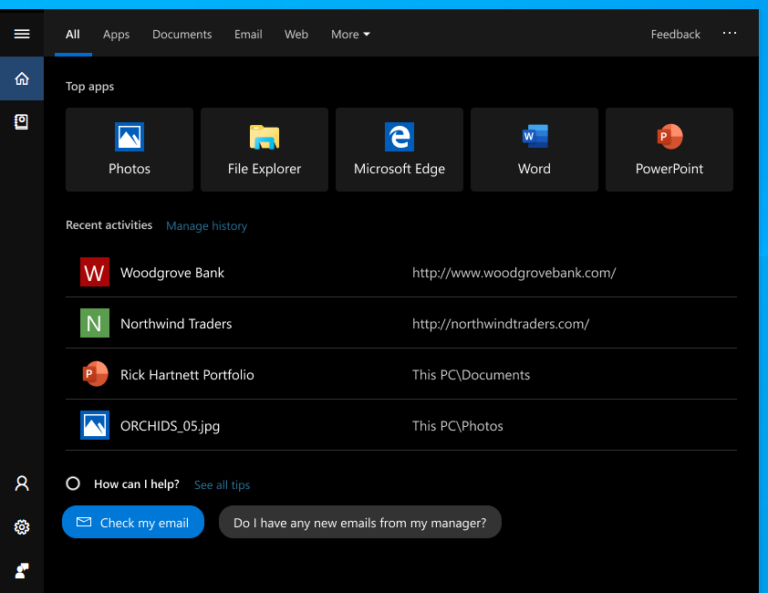
- Bringing the latest Search Home experience to more users. With the Windows 10 May 2019 Update Microsoft updated Search Home to help you save time by adding quick access to your Top apps and Recent activities. After receiving positive feedback and Idea about this new experience, Microsoft is now making it available to more users by rolling it out to everyone using the Windows 10 October 2018 Update as well. Here’s a glance at what it looks like for those on the Windows 10 October 2018 Update:
A redesigned Network Status page in Settings
Based on your feedback, Microsoft is revamping the Network & Internet landing page in Settings to provide more information at a glance about your device’s coectivity, combining several pages to give you one clear view of how you are coected to the internet.
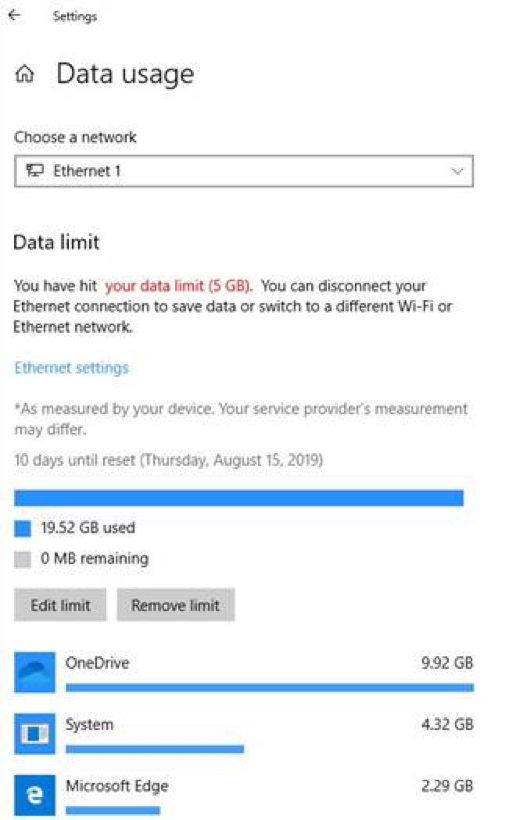
- New view of active coections: Microsoft now show all available coection interfaces on the Status page, so you can quickly see what is coected and view and change properties as needed. If you have multiple coections, only one will be used for internet coectivity at a time, and that one is still shown in the Status diagram at the top of the page.
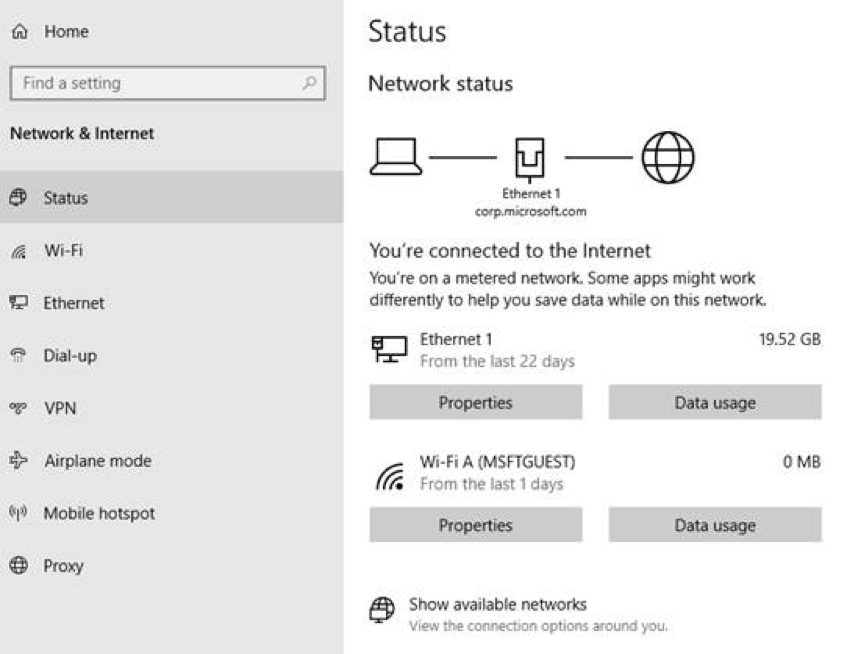
- Integrated Data Usage: As you may have noticed in the picture above, you can now see how much data is being used by a network right from the Status page! If it looks like you’re using a lot of data, you can drill into the Data Usage page to create a limit for that network, which will warn you if you get close or go over your limit. You can also see how much data each app is using on that network.
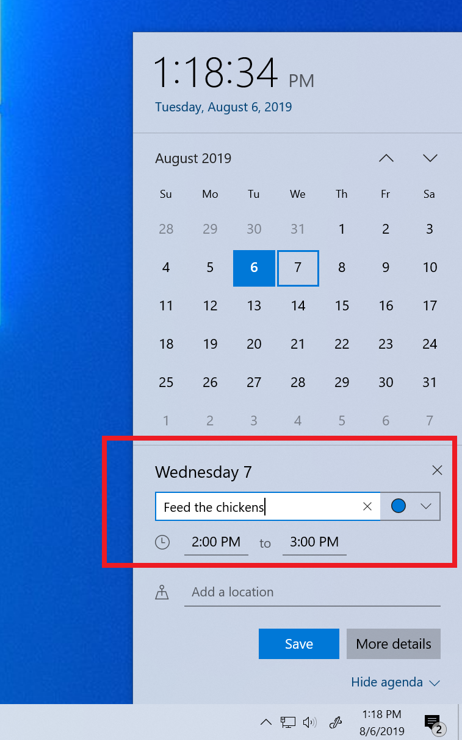
Quick Event Create from the Taskbar
You can now quickly create an event straight from the Calendar flyout on the Taskbar. Just select the date and time at the lower right corner of the Taskbar to open the Calendar flyout and pick your desired date and start typing in the text box. You’ll then see inline options to set a time and location.
Refining your notification settings
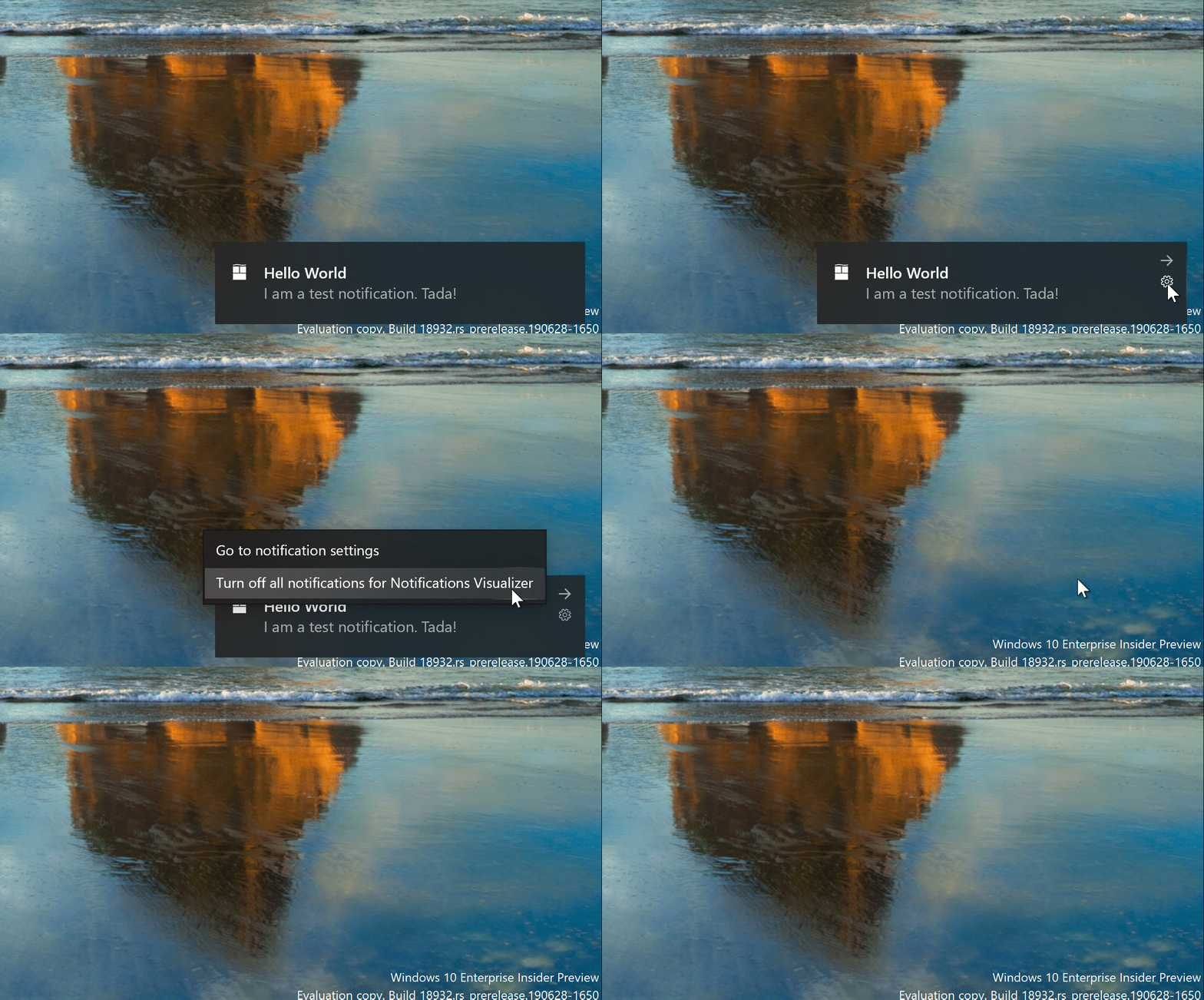
One thing Microsoft has heard from users, though, is that our notification settings aren’t easily discoverable. In addition, once you find the settings, they can be difficult to understand. In order to address this, Microsoft has begun rolling out a few changes, including:
- When you receive a notification toast, there will now be an inline option to turn off notifications for that app, or head to the app’s notification settings.
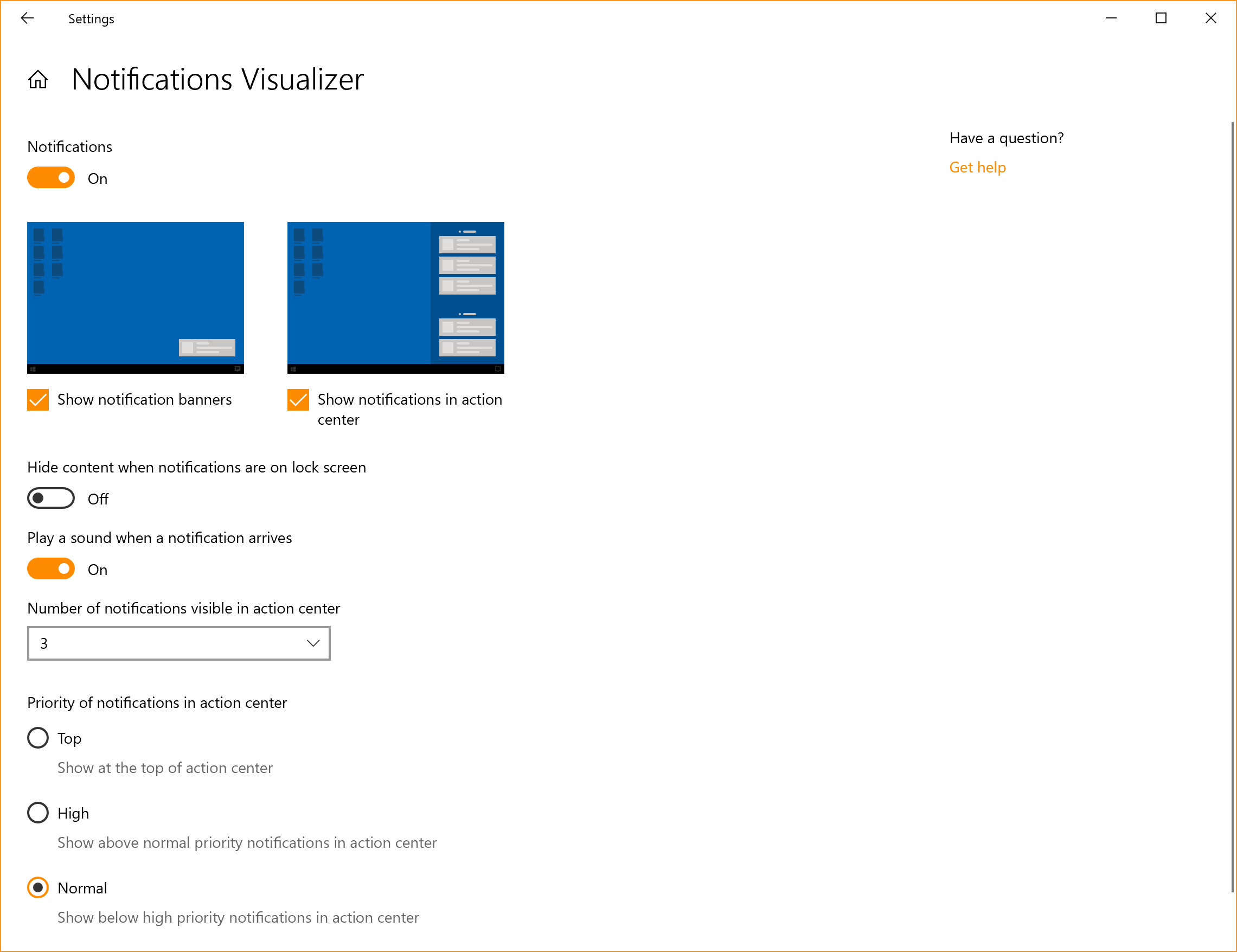
- When you dive into an app’s notification settings, you’ll find that Microsoft has added pictures to help articulate the impact of certain settings.
- Prefer to have all your notifications muted? You no longer have to go to the old sound control panel to do that – Microsoft has added it as a top-level option in Notification & Actions Settings.
- Microsoft has also added a new direct link at the top of the Action Center to manage notifications, so it takes one less step to get to Notification & Actions settings. To make room for this Microsoft has moved the “no notifications” text down to the middle of the Action Center, which also means your eyes don’t have to traverse as far to see it when you launch the Action Center from the bottom of the screen.
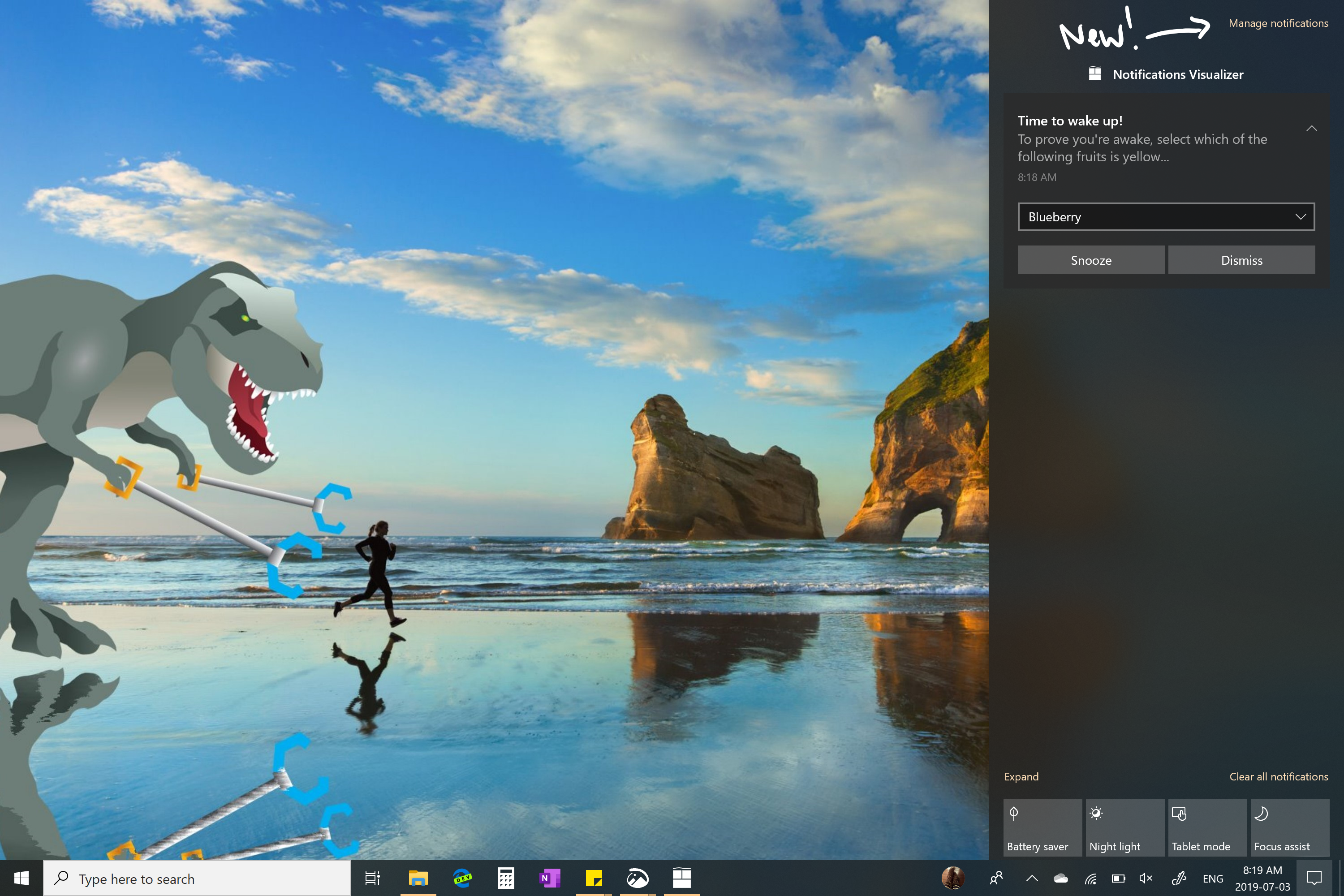
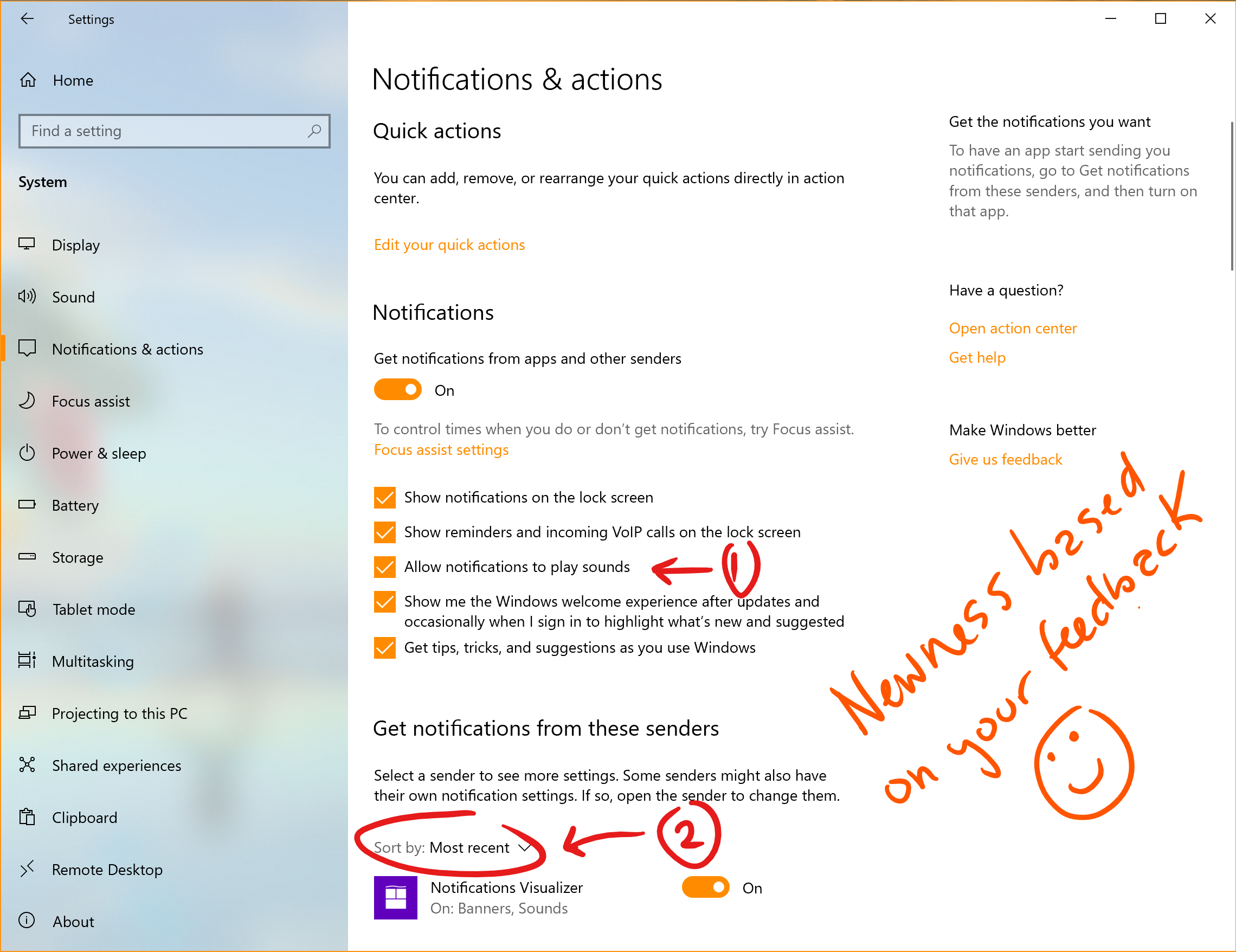
- Finally, ever dismissed a notification you wanted to disable, and went to Notification & Actions Settings only to find the list of notification senders to be really really long? You can now sort the list by which apps most recently sent notifications.
Feedback Hub updates
Based on your feedback, Microsoft is updating the Feedback Hub with a new feature called Find Similar Feedback! When you go to log a new piece of feedback, you’ll now see a section that looks to see if there’s any existing feedback that sounds similar to yours. You can now choose to automatically link your feedback to that existing feedback (rather than creating a new piece of feedback).
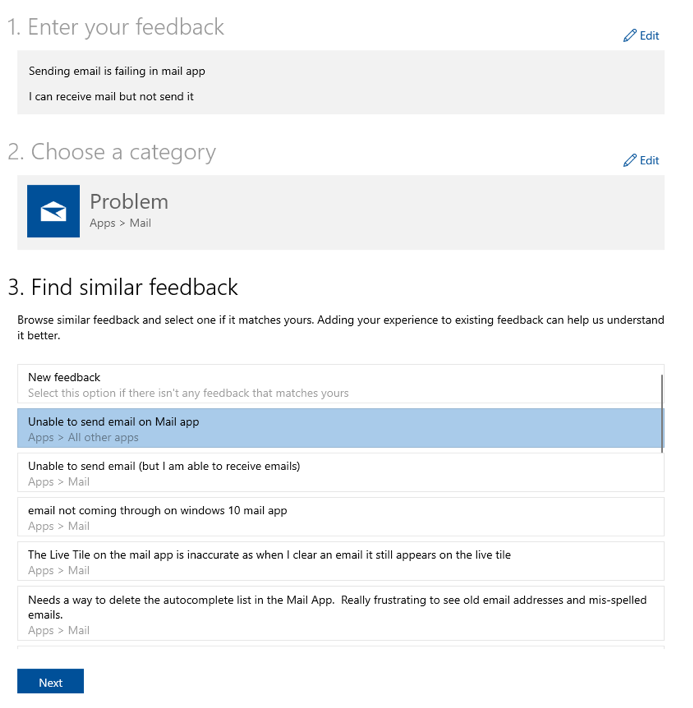
Microsoft has also updated the Thank You page a little bit, so that now there’s a direct button to share your feedback if that’s what you want do (rather than having to go find your feedback afterwards in the My Feedback section).
New download throttling options for Delivery Optimization
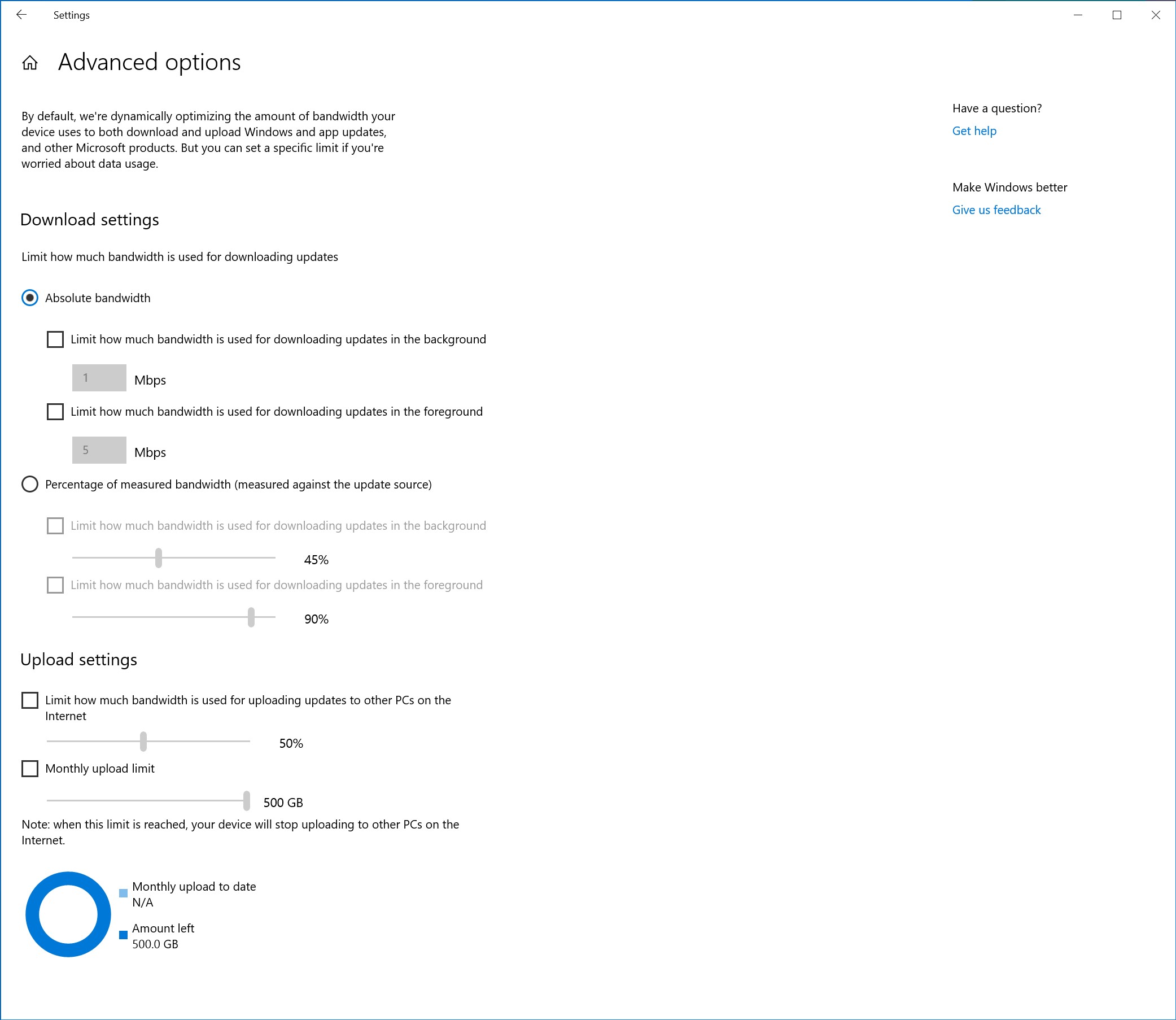
Microsoft has heard from our users with very low coection speeds that setting download throttling as a percentage of available bandwidth isn’t providing enough relief in reducing the impact on their network. That’s why Microsoft has added a new option to throttle the bandwidth used by Delivery Optimization as an absolute value. You can set this separately for Foreground downloads (downloads that you initiate from Windows Store for example) or background downloads. This option already exists for IT Pros who use Group Policies or MDM policies to configure Delivery Optimization. You can access this option via Settings > Update & Security > Delivery Optimization > Advanced Options
Windows Ink Workspace Updates
As part of this, Windows Ink Workspace now takes up less screen real estate, and Microsoft is converging their whiteboarding experiences with a new direct link to our Microsoft Whiteboard app. Microsoft Whiteboard is a freeform digital canvas where ideas, content, and people can come together. It includes an infinite canvas, optional backgrounds (including graph paper and solid dark grey) to choose from, rainbow ink support, multiple pages, and generally addresses much of the feedback you shared with Microsoft about Sketchpad. If you used Sketchpad, don’t worry – Microsoft saved the sketch you were working on in your Pictures folder.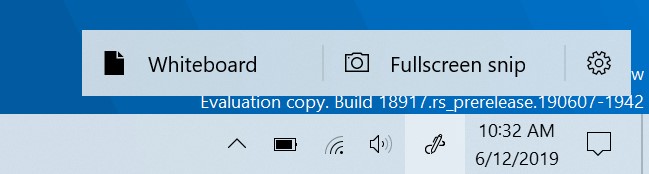
Disk type now visible in Task Manager Performance tab
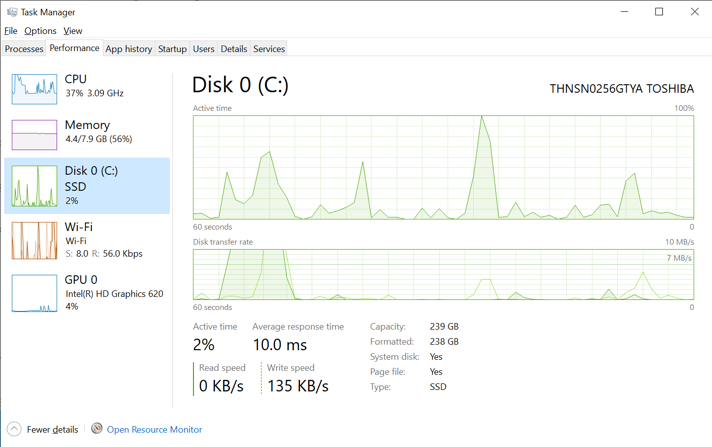
A small, but perhaps convenient change — you’ll now be able to see the disk type (e.g. SSD) for each disk listed in Task Manager’s performance tab. This is particularly helpful in cases where you have multiple disks listed, so you can differentiate between them.
Updated File Explorer search
Microsoft has heard the feedback asking for increased consistency, and to make it easier to find your files. This change will help integrate your OneDrive content online with the traditional indexed results.
What does that mean for you? Once you have the new experience, as you type in File Explorer’s search box, you’ll now see a dropdown populated with suggested files at your fingertips that you can pick from.
These improved results can be launched directly by clicking the entry in the new suggestions box, or if you want to open the file location, just right-click the entry and there’ll be an option to do so. If you need to use commands or dig deeper into non-indexed locations, you can still press enter and populate the view with the traditional search results.
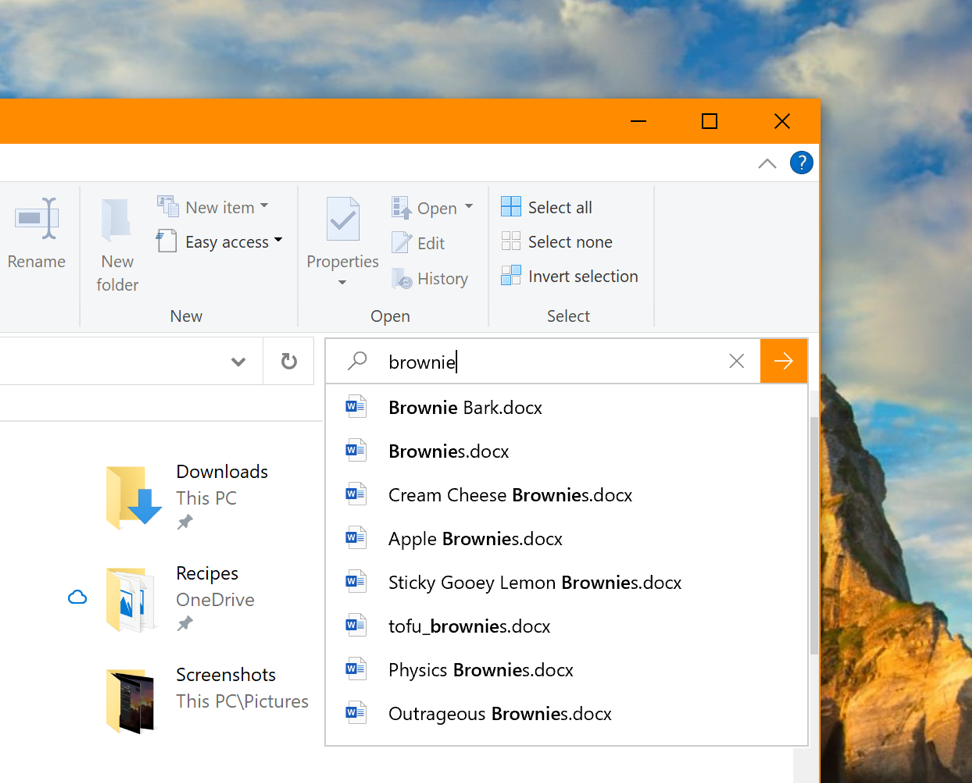
Microsoft has also updated the design, so now as soon as you click the search box in File Explorer (or press CTRL+E to set focus to it), you’ll see the dropdown list with your search history.
NOTES: You may notice in the screenshot, Microsoft has made the File Explorer search box wider so the suggestions dropdown has a bit more room to show results – that’s not a new option.
Expanding dictation support to more languages
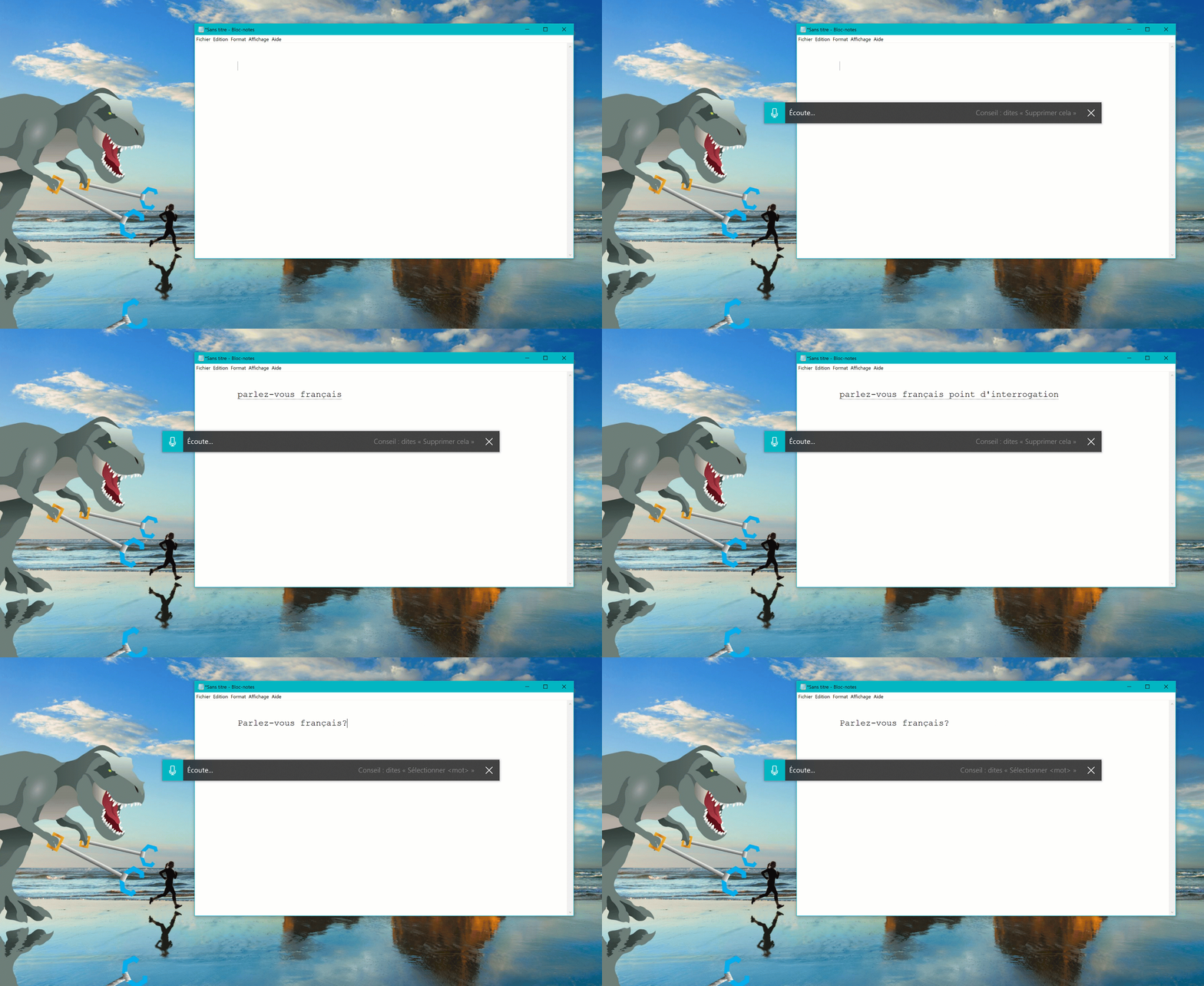
Ever had a word that you just can’t figure out how to spell? Or like to think out loud and waa automatically jot it all down? In addition to English (United States), Microsoft now supports dictation when using English (Canada), English (UK), English (Australia), English (India), French (France), French (Canada), German (Germany), Italian (Italy), Spanish (Spain), Spanish (Mexico), Portuguese (Brazil), and Chinese (Simplified, China)
How to try it? Set focus to a text field and press WIN+H! Or you can tap the little microphone button at the top of the touch keyboard. Say what you waa say, then press WIN+H a second time or tap the mic button to stop the dictation, or let the dictation session time out on its own.
Notes:
- Speech resources will need to be downloaded for dictation to work. To check that they’re available, go to Language Settings, click on the desired language, and then click on Options. If speech resources are available but haven’t been downloaded, there should be a download button.
- Dictation is based on the language of your active keyboard. To switch between preferred languages, press WIN + Space.
Cross-language support in Feedback Hub
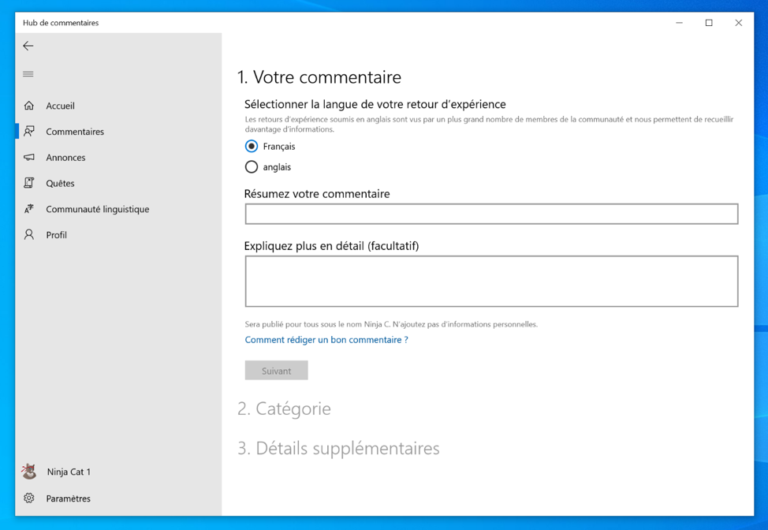
Based on your feedback, with Feedback Hub version 1.1903, Insiders with Windows set to a language other than English now have the option of browsing English feedback within the Feedback Hub, as well as submitting feedback in English on the New Feedback form.
Bringing SwiftKey’s Typing Intelligence to Even More Languages
As many of you know, Microsoft has been working on bringing SwiftKey’s typing intelligence to Windows. Microsoft is aouncing the support to these 39 languages:
Afrikaans (South Africa), Albanian (Albania), Arabic (Saudi Arabia), Armenian (Armenia), Azerbaijani (Azerbaijan), Basque (Spain), Bulgarian (Bulgaria), Catalan (Spain), Croatian (Croatia), Czech (Czech Republic), Danish (Denmark), Dutch (Netherlands), Estonian (Estonia), Fiish (Finland), Galician (Spain), Georgian (Georgia), Greek (Greece), Hausa (Nigeria), Hebrew (Israel), Hindi (India), Hungarian (Hungary), Indonesian (Indonesia), Kazakh (Kazakhstan), Latvian (Latvia), Lithuanian (Lithuania), Macedonian (Macedonia), Malay (Malaysia), Norwegian (Bokmal, Norway), Persian (Iran), Polish (Poland), Romanian (Romania), Serbian (Serbia), Serbian (Serbia), Slovak (Slovakia), Slovenian (Slovenia), Swedish (Sweden), Turkish (Turkey), Ukrainian (Ukraine), Uzbek (Uzbek)
What does this mean for you? Basically, Microsoft is updating the underlying language model when typing in each of these languages, to improve the accuracy of the autocorrections, shapewriting, and predictions. You’d notice this when using the touch keyboard, or the hardware keyboard text predictions (if enabled). If you use these languages above to type, help Microsoft make your typing experience even better by sharing feedback! (being as specific as possible, if you can). Microsoft will be posting a Quest about this improvement in the Feedback Hub soon.
Improved Windows Sandbox accessibility
Microsoft has made several updates to improve Windows Sandbox accessibility scenarios. This includes:
- Microphone support
- Added functionality to configure the audio input device via the Windows Sandbox config file
- A Shift + Alt + PrintScreen key sequence in Windows Sandbox which activates the ease of access dialog for enabling high contrast mode.
- A ctrl + alt + break key sequence in Windows Sandbox which allows entering/exiting fullscreen mode
When will Windows 10 version 2004 rollout to users?
Microsoft is yet to aounce the official rollout dates of Windows 10 version 2004. Seeing Microsoft’s previous track record, it’s safe to assume that the company will be rolling the update out in phases spread around a couple of months. This will also allow Microsoft to act quicker if in case something goes wrong with the update.
برچسب:
نویسنده: محمد رضا جوادیان
صفحه بندی
آرشیو مطالب
- فروردين 1400
- مرداد 1399
- تير 1399
- فروردين 1399
- آذر 1398
- آبان 1398
- مرداد 1398
- خرداد 1398
- ارديبهشت 1398
- اسفند 1398
- بهمن 1398
- دی 1398
- آذر 1397
- شهريور 1397
- مرداد 1397
- تير 1397
- خرداد 1397
- ارديبهشت 1397
- فروردين 1397
- دی 1397
- آذر 1396
- آبان 1396
- مهر 1396
- شهريور 1396
- مرداد 1396
- تير 1396
- خرداد 1396
- ارديبهشت 1396
- فروردين 1396
- اسفند 1396
- بهمن 1396
- دی 1396
- آبان 1395
- مهر 1395
- شهريور 1395
- مرداد 1395
- تير 1395
- خرداد 1395
- ارديبهشت 1395
- فروردين 1395
- اسفند 1395
- بهمن 1395
- دی 1395
- اسفند 1394
- بهمن 1394